Connect the tools you already use
Pitch bookings from Pitchup, customer messages answered by Breezy, rotas from Shiftie and booking data for your analytics. Your bookings, prices and calendar stay in one place.

Bookings, prices and calendar in one place

Pitchup
Pitch bookings
Both ways
Breezy
Customer chat
Both ways
Shiftie
Staff rotas
Into eolaAnalytics
Google and Meta
Out of eolaPitchup
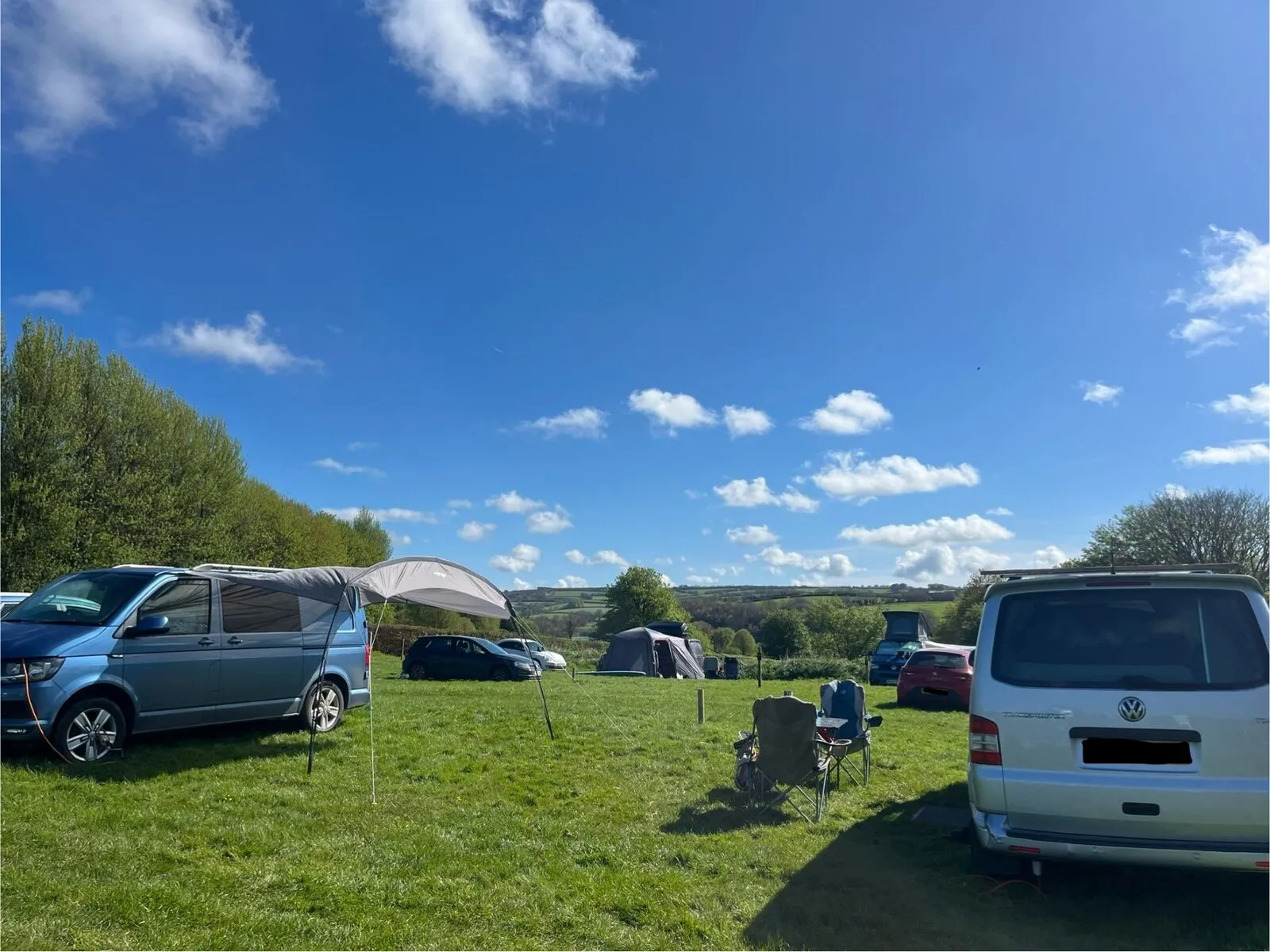
Pitchup bookings, straight into your calendar
Link your pitches and confirmed Pitchup bookings arrive in eola, while bookings you take in eola go to Pitchup. Guests get your forms, reminders and ideas for things to do during their stay.
- Changes and cancellations follow both ways
- Block a pitch in eola and it’s blocked on Pitchup
- Our team helps you link your pitches
New booking from Pitchup
Pitch 12 · 13 to 16 June · 4 guests
Before you arrive · Pitch 12
Breezy
Customer messages answered, even after hours
Breezy sits on your website as a chat widget and answers customers with live information from your eola account. It can move bookings and process refunds, and passes anything that needs a person to your team with a summary.
- Answers with your live availability and prices
- Moves bookings and confirms the change with the customer
- Every conversation there for you to read

Breezy · this evening

“Can we move Saturday to Sunday?”
21:14 · moved and confirmed
“My son has a heart condition”
22:40 · passed to your team
Shiftie
Your rota decides who’s available
Plan shifts and leave in Shiftie. Approved time off makes instructors unavailable in eola, so sessions only offer the places your team can cover.
- Matched instructor by instructor
- Leave and absences block availability
- Bookings and prices stay in eola

Team · Sat
ShiftieSam Kerr
On shift until 17:00
Jo Price
Annual leave
Alex Dean
On shift from 12:00
Your analytics and calendars too
Google Analytics 4
Page views on your booking widget, basket adds and completed bookings, each with its value.
Meta pixel
The same booking events, so you can build audiences in Meta of people who looked but didn’t book.
Google Calendar
Instructors add the sessions they’re running to their own Google Calendar, straight from eola.
How connecting works
Most connections take a few minutes to set up, and then run on their own.
- 1Add the appFind it in Toolset, then Apps. Some you add yourself, and for others our team switches them on with you.
- 2Link your accountAdd your Pitchup API key, connect Shiftie and match your instructors, or paste your tracking IDs into your widget settings.
- 3Carry on in eolaBookings, rota changes and tracking events flow through by themselves.

Toolset · Apps
Rota synced from Shiftie
Jo is away Sat 14 June
Works well with integrations
Whatever comes in through a connection lands in the same eola as everything else.
Instructors
Rotas from Shiftie set who’s available
Learn moreAccommodation
Pitches and pods beside your activities
Learn moreWaivers and questionnaires
Pitchup guests sign your forms too
Learn moreMarketing
Track ads with Google Analytics and Meta
Learn moreeola AI
Descriptions and questionnaire checks
Learn moreBookings
Every connected booking in one calendar
Learn more
Your questions answered
Transparency is at the heart of eola. If you don’t see your question here, get in touch with our team.
Who takes payment for a Pitchup booking?
Pitchup does. The booking still syncs into eola, and the guest’s confirmation notes that payment was taken on Pitchup.
Can Breezy change bookings on its own?
Yes. It can move bookings and process refunds using your live eola information, and passes anything it can’t settle to your team with a summary. You can read every conversation.
Do I need my own Shiftie account?
Yes. The integration connects your existing Shiftie account, and eola never stores its password.
What happens if I disconnect Shiftie?
The unavailability Shiftie created in eola is removed. Your bookings, prices and sessions carry on as they were.
What does analytics tracking send?
Page views on your booking widget, items added to the basket and completed bookings with their value, to Google Analytics 4 and your Meta pixel.
How do I switch an integration on?
Look in Toolset, then Apps. If you can’t add one yourself, email help@eola.co and our team will switch it on with you.
See what eola could do for your centre
Book a demo and our UK-based team will show you your own activities on an eola booking page, answer every question and help you choose what works for your centre.
- Live in hours, not weeks
- Help moving your data across
- Support from a UK-based team