New: wallet passes and clearer membership pages for your members
Members can now keep their membership on their phone. From their membership page they can add a pass for themselves and for their children to Apple Wallet or Google Wallet, ready to show at your front desk. We’ve also made membership pages easier to read, and made it easier for your team to find named members and children in search.
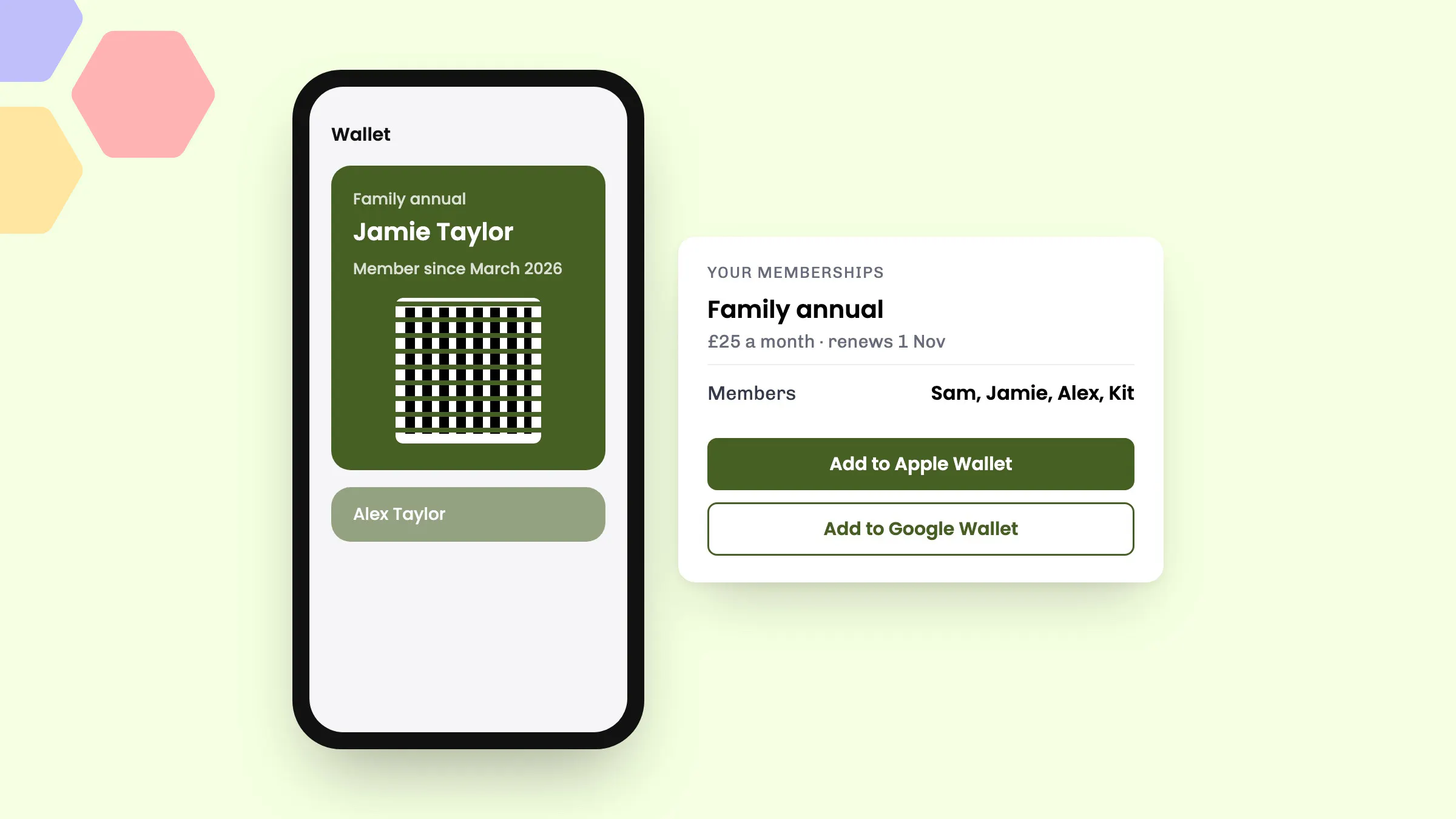
What your members see
The Your memberships page in a customer’s eola account now groups memberships by the business they’re with. Each card shows the plan and price, whether they pay for it, when it renews or ends, and who’s on it. From each card they can view the membership, open their QR code, or go straight to booking with Use to book.
Opening a membership shows:
- Members: everyone on it, adults and children, each with their own QR code
- Wallet passes: buttons to add each pass to Apple Wallet or Google Wallet
- Benefits: what the membership gives at each of your products, such as “Free for members” or “20% off per member”, plus any members-only products
- Billing and invoices for the person who pays, and how to contact you to cancel
A parent sees a pass for themselves and one for each of their children on that membership, so a family can keep everyone’s pass on one phone. The pass shows the member’s name, the membership, the plan and price, when it started, and the member’s QR code. It uses your widget’s button colour, and passes for fixed-length memberships expire when the membership ends.
New members also get the wallet buttons in the email we send when they’re added to a membership. Apple Wallet passes need to be added on an iPhone or Mac.
At the front desk
The QR code on a wallet pass is the same member QR code your team already scans. If you use the Check-in app with a handheld scanner, scanning a member’s pass shows their name, their membership and its status, with a clear warning if the membership isn’t currently active. Select View membership to open it in your dashboard.
Read more about scanning in our guide to QR code check-in.
Finding members in search
Since 1 October, dashboard search finds anyone named on a membership, not only the person who paid for it. Search a child’s name and you’ll see their bookings and memberships. Each membership in the results shows how many members it has, so you can tell a family membership from a single one at a glance. That helps when a child turns up with a grandparent and nobody remembers whose name the membership is under.
How to use it
There’s nothing to switch on. Wallet passes appear automatically for active memberships once a member has been added.
- Encourage members to add everyone who uses the membership. Each named member gets their own QR code and wallet pass. Our post on new membership features explains how naming members works.
- Point members to Your memberships in their eola account, or to the email they get when they’re added, to save their passes.
- At the desk, scan the pass with the Check-in scanner, or search for the member by name.
The Check-in app isn’t included on the Starter plan. Members can still show their pass, and your team can find them in search.
Good to know
- Passes are for people named on a membership. Anyone who hasn’t been added yet won’t have one.
- Wallet passes are only offered while a membership is active.
- Members can’t change or remove people themselves. Their membership page asks them to contact you.
- Setting up memberships from scratch? See our guide to setting up memberships.
See eola in action
Want to see how this could work for your business? Book a demo or get in touch with our team.