Setting up memberships in eola: plans, benefits and members
Memberships give your regulars a reason to keep coming back, and give you income you can plan around. In eola you create a membership, add one or more price plans, then choose what members get on your activities, rentals and accommodation. This guide covers set-up and the improvements we’ve made this year.
How memberships work
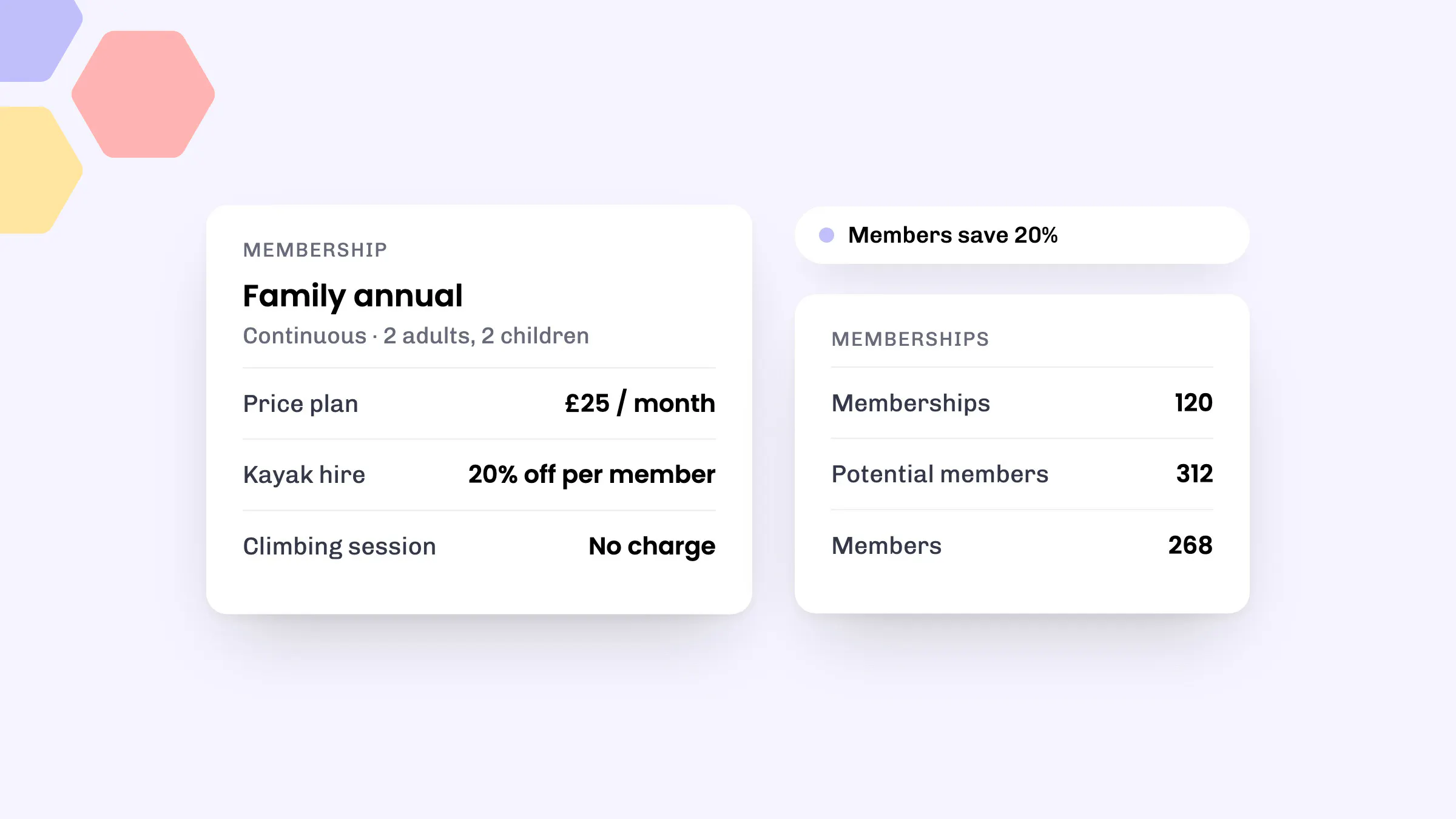
Each membership has a name, a description and at least one price plan. A plan is either continuous, renewing weekly, monthly or annually until it’s cancelled, or fixed length, ending after a set period. One membership can have several plans, so you can offer monthly and annual options side by side.
Each plan also sets how many adults and children it covers. That number controls how many people can use the member benefits on a booking, so a family plan might cover two adults and two children.
Benefits are what members get in return. For each product you can choose:
- No charge on bookings
- Percentage off bookings
- Fixed amount off bookings
Since May, member discounts apply on every pricing model. If a product’s price includes a base number of guests, members get their discount on that base price too, not only on extra guests.
What your customers see
Since September, activities, rentals and accommodation with a member benefit show it on the product page in your widget, with a note such as “Members save 20%” or “Free for members”. Customers can open it to see which memberships give them a better price and buy one there and then. Memberships you’ve hidden from the public aren’t suggested.
When members pay for a membership, their bank statement now shows your business name rather than eola’s. A charge people recognise is less likely to be disputed.
Since October, members on a continuous plan get an email about a week before a renewal payment, showing the date, the amount and how to cancel. Annual plans get one before every renewal, weekly and monthly plans before the first and then every six months.
Members can also name the people who use their membership, and each person gets their own login, QR code and Apple Wallet or Google Wallet pass. See our posts on new membership features and on wallet passes and clearer membership pages.
Keeping track
The Memberships pages show three totals at the top: Memberships (active or in a free trial), Potential members (how many people those memberships can cover) and Members (people actually named). If Potential members is well ahead of Members, some families still need to add their children.
Each membership discount code’s page now shows its Discounted revenue and its Lifetime revenue, which includes renewals after the discount ends. See our guide to membership discount codes.
How to set it up
Memberships are included on every plan, including Starter.
- Go to Toolset > Apps, open Memberships and select Add to eola. A Memberships option then appears under Products.
- Go to Products > Memberships and select Create membership.
- Add a name and description. Choose a question pack and terms and conditions if you need them, and add any extra content for the welcome email, such as gate codes or how to book a first session.
- Select Continue to pricing. Give the plan a nickname, such as Adult monthly, then enter the price and any sign-up fee, choose Fixed length or Continuous, and set how many adults and children it covers. Select Create price plan.
- Back on the membership, select Edit benefits, then Create. Choose the benefit, pick the product it applies to and select Add benefit. Repeat for each product.
Our help centre has more detail on creating a membership, setting up a price plan, adding benefits and cancelling a membership.
Changing what members pay
A plan’s price can’t be changed, but since October you can move everyone on a plan to a new one in one go:
- Create the new plan. It must be continuous and billed over the same period as the old one, so members keep their billing dates.
- Open the plan your members are on now, select the arrow next to Edit and choose Move members.
- Pick the new plan, then choose when members start paying the new price: From each member’s next renewal, or Now, charging or crediting the difference for the rest of this billing period.
- Select Move members and confirm.
Everyone moves, with the new plan’s benefits, straight away. Your choice only decides when the new price is charged, and the plan page shows progress. We don’t email members, so tell them first.
Good to know
- You can edit a plan’s sign-up fee, trial period and how many adults and children it covers, but not its price.
- Members on fixed length plans can’t be moved. The old plan stays open to new members until you delete it.
- To cancel a membership, search for the customer, open the membership and select Manage. You can cancel now with a prorated refund, cancel now without a refund, or cancel at the end of the billing cycle.
- Your business name on statements is shortened to 22 characters, and anything other than letters, numbers and spaces is left out.
See eola in action
Want to see how this could work for your business? Book a demo or get in touch with our team.