Membership discount codes: offer money off a membership
Membership discount codes let you take money off a membership to bring in new members. You might run a January joining offer, give a local club its own code, or take the first month off for people who enjoyed a taster session. Since September you can create these alongside your booking discount codes.
What you can offer
Each code is either a percentage or a fixed amount off, never both. You then choose how long the discount lasts:
- The first payment only
- A set number of months, from 1 to 36
- Every payment, for as long as the membership runs
You can limit a code to particular memberships, cap how many customers can use it, and set when it expires. Once a code expires or reaches its limit it stops working on its own, so there’s nothing to remember to switch off when a promotion ends.
A set number of months means months, not payments. On a monthly plan, three months covers three payments. On an annual plan, it may only cover one.
What your customers see
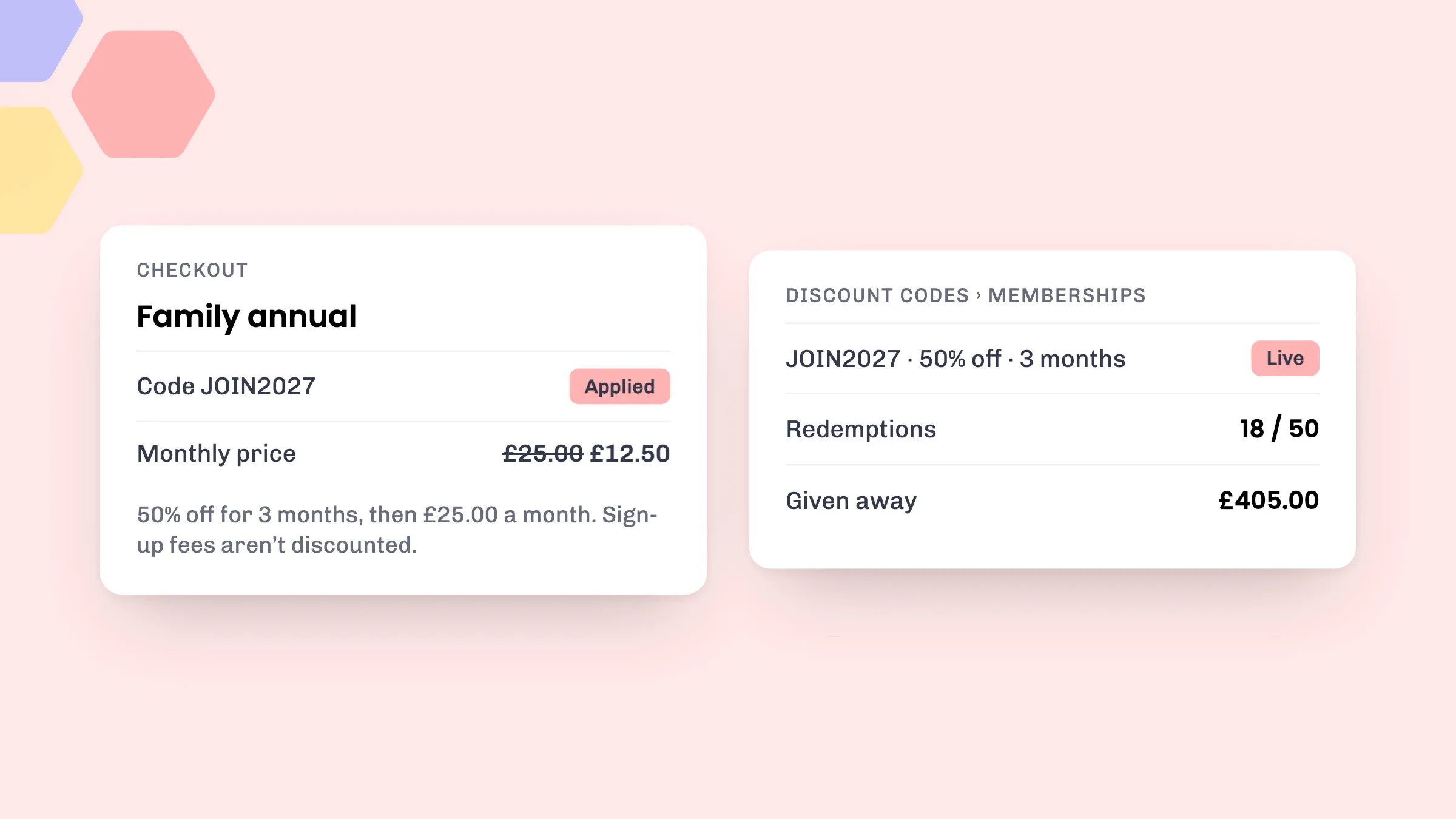
Customers enter the code at checkout, in the same place they’d enter a voucher. Before they pay, they can see exactly what changes:
- the original price crossed out, next to the discounted price
- how long the discount lasts
- what they’ll pay once it ends
- a note that any sign-up fee isn’t discounted
That matters for a recurring payment. Members know up front when the full price starts, which means fewer surprised emails a few months in.
Seeing how a code is doing
The Memberships tab on your Discount codes page lists every code with its offer, how many memberships it covers, redemptions, how much you’ve discounted so far, when it expires and whether it’s Live or Off. Totals across all your codes sit at the top.
Redemptions count customers who completed checkout and now have a paying membership. For codes that discount every payment, keep an eye on the amount given away, as it grows with each payment we take.
How to set it up
You’ll need the Memberships and Discount codes apps switched on. Discount codes aren’t included on the Starter plan.
- Go to Products > Discount codes and select the Memberships tab.
- Select Issue membership code.
- Use the suggested code or type your own, using letters and numbers only. Then pick an End date: the code works until the end of that day.
- Choose Percentage off or Fixed amount off, and enter the amount.
- Choose how long the discount lasts.
- Tick the memberships the code can be used on. You need at least one.
- To cap the number of customers, enter Maximum redemptions. Leave it blank for unlimited.
- Select Issue discount code.
Our help centre has full guides to creating a membership discount code and viewing and managing membership discount codes.
Good to know
- A code can’t be edited once it’s issued. To change the offer, open the code, tick Turn this code off, and issue a new one.
- Turning a code off, or letting it expire, doesn’t affect customers who’ve already used it. They keep their discount on the original terms.
- Membership codes are separate from booking discount codes, and a customer can use one membership code per membership. Codes aren’t case sensitive.
- Your payout report shows the discounted amount rather than the full membership price. New to memberships? Start with our guide to setting up memberships.
See eola in action
Want to see how this could work for your business? Book a demo or get in touch with our team.