Taking bookings and payments at the front desk with eola
Not every booking happens online. Walk-ins, phone calls and customers who never finished paying all end up at your front desk. The New booking flow in your dashboard handles all of them, and recent updates make member prices and unpaid items easier to deal with when there’s a queue.
Booking from your dashboard
Select New booking at the top of your dashboard to book activities, rentals or accommodation for a customer. Add as many items as you need to the basket, then go to checkout. Start typing a name and existing customers are suggested, so regulars don’t have to give their details again.
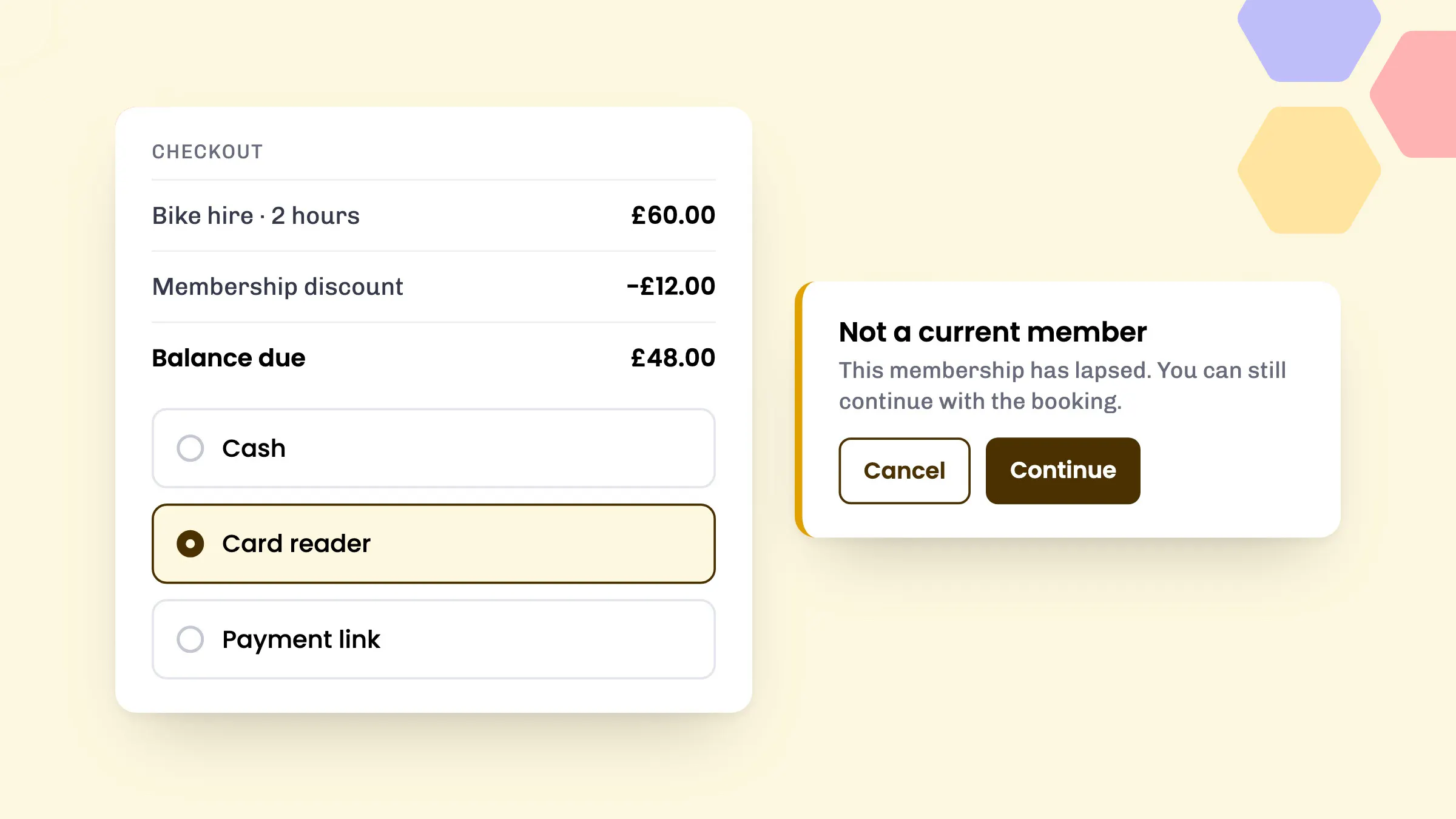
At checkout you choose how the customer pays:
- Cash, so your reports still show how the booking was paid
- Card reader, for in-person card payments
- Payment link, sent by email, and by SMS too if you tick Send via sms too
- Invoice, if you use the Invoicing app
Member prices before you take payment
Since 28 September, when you pick a member at checkout you see their member price before taking payment. The basket shows the membership discount and the balance due, and the card reader screen shows the amount being charged, so the customer knows what they’re paying before they tap.
Payment link emails now show members their price too, so a member booking over the phone sees the same discount they’d get online.
Members-only warnings
Members-only activities, rentals and accommodation are labelled Members only in the booking flow. If the customer can’t normally book one, staff see a Not a current member warning that explains why, for example:
- the customer isn’t a member
- their membership has lapsed
- their membership doesn’t include that product
- their membership only covers a set number of adults or children
Staff can cancel or continue. It’s a prompt rather than a block, so you can still help someone who’s renewing at the desk, while making sure nobody books a non-member by accident.
Settling unpaid items at the desk
Customers sometimes turn up without having paid a payment link. Go to Sales > Unpaid items to see unpaid bookings, part-paid deposit bookings, unpaid additional payments and unpaid store items. On each one you can copy the payment link, or select Checkout to open it in the booking flow and take payment by cash or card reader. Unpaid items also show on the customer’s record.
Our guide to payment links and unpaid items goes into more detail.
After checkout
When a booking is complete you can choose what to do next. Back to calendar is the main option. Alongside it you can view the invoice, go to post checkout to add attendees and sort out disclaimers and question packs, or manage each booking you’ve just made. You can also take another booking straight away.
How to use it
- To take card payments in person, add the Card readers app from Toolset > Apps, then set up your reader under Toolset > Card readers.
- Select New booking and add what the customer wants to the basket.
- At checkout, enter or pick the customer, check the price and choose a payment method.
- Select Complete. For a card reader payment, select your reader and ask the customer to pay.
Onsite point of sale and cash, card and invoice payments are included on every plan, including Starter.
Good to know
- Your card reader needs to be online and on the same network as the device you’re using.
- Card reader payments need a basket total above zero.
- Members can show their membership QR code or wallet pass at the desk. See wallet passes and membership pages.
See eola in action
Want to see how this could work for your business? Book a demo or get in touch with our team.