Chasing unpaid bookings with payment links and the unpaid items list
Not every booking is paid the moment it’s made. Phone bookings, group organisers and extras added later often need a payment link, and then someone has to follow them up. Payment links and the unpaid items list keep that chasing in one place, so nothing slips through on a busy weekend.
Sending a payment link
When you take a booking from your dashboard, choose Payment link as the payment method. We email the link to the customer, and you can tick Send via sms too. They click it, add their card details and the booking is paid.
Since May, you can also change a payment link booking that hasn’t been paid yet. Open it in checkout again, make your changes and send a new link. Before, once a link had gone out, the booking couldn’t be edited through checkout.
Everything unpaid in one list
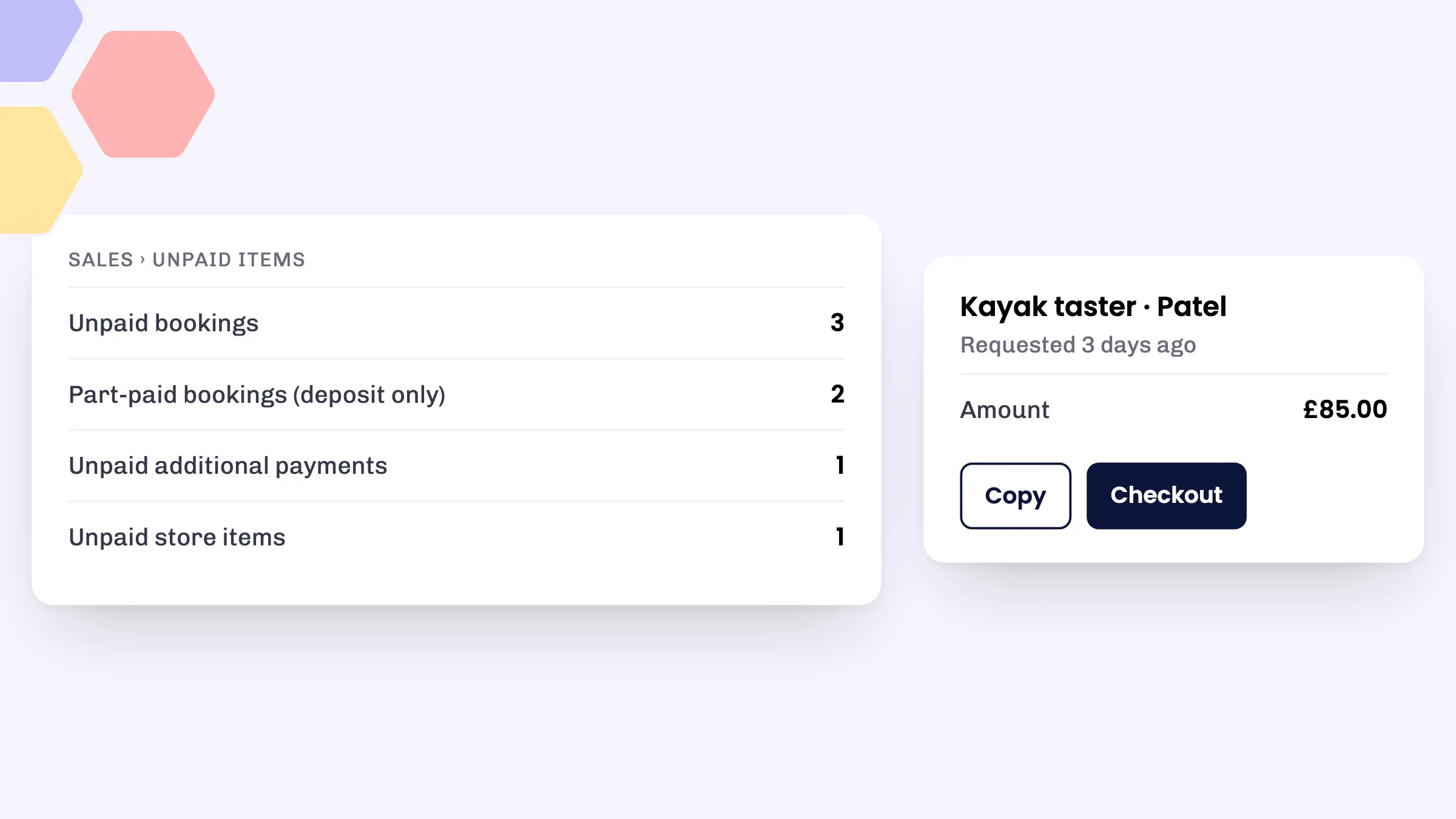
Go to Sales > Unpaid items to see what’s still owed. The list is split into sections:
- Unpaid bookings: bookings still waiting for payment.
- Part-paid bookings (deposit only): customers who’ve paid a deposit and still owe the balance.
- Unpaid additional payments: extra charges you’ve requested on a booking after it was made.
- Unpaid store items: store items you’ve asked a customer to pay for.
Each row shows who it’s for, what it’s for, when it was requested and how much it is. Copy puts the payment link on your clipboard, so you can paste it into a message. Checkout opens the customer’s basket in your dashboard checkout.
Since August, the list only shows store items where you asked for payment by email or invoice. Abandoned and failed baskets no longer clutter it up.
Taking payment when the customer turns up
If a customer arrives without paying, click Checkout next to the item. Their basket opens in checkout, ready for you to take payment on the Card reader or record it as Cash. This works for unpaid bookings, deposit balances, store items and additional charges.
If an additional payment is no longer needed, click Cancel. It’s removed from your records, the payment link stops working and reminder emails stop. You can’t undo this.
Resending links and reminders
Each session’s Comms page lets you resend the booking payment link, the remaining balance link for deposits, or a charge payment link to the organiser. When you request an additional payment, you can also pick a date under If not paid, remind me on. If it’s still unpaid on that day, we’ll email you a reminder.
How to use it
- Go to Sales > Unpaid items.
- Open the section you need, for example Unpaid bookings.
- Click Copy to grab the payment link and send it to the customer, or Checkout to take payment now.
- In checkout, update the basket if you need to, choose a payment method and click Complete.
Card, cash and invoice payments are included on every plan, including Starter. Invoices need the Invoicing app, which you can add from Toolset > Apps.
Good to know
- You can also see what a customer owes on their customer record, under the Unpaid tabs, each with a Pay link.
- Deposit balances can’t be sent as a new payment link or invoice from checkout. Customers can pay from their balance emails, or you can take it by card reader or cash.
- If you apply a discount code to a booking and send an invoice, the invoice now charges the discounted total.
See eola in action
Want to see how this could work for your business? Book a demo or get in touch with our team.