Pitchup bookings in eola: list your stays on Pitchup
If you offer camping, glamping or other stays, Pitchup is one of the places your customers go looking. eola manages your Pitchup listing for you and links it to your accommodation in eola, so bookings made on Pitchup appear in eola and bookings made through eola are sent to Pitchup. Your team works from one calendar instead of checking two systems.
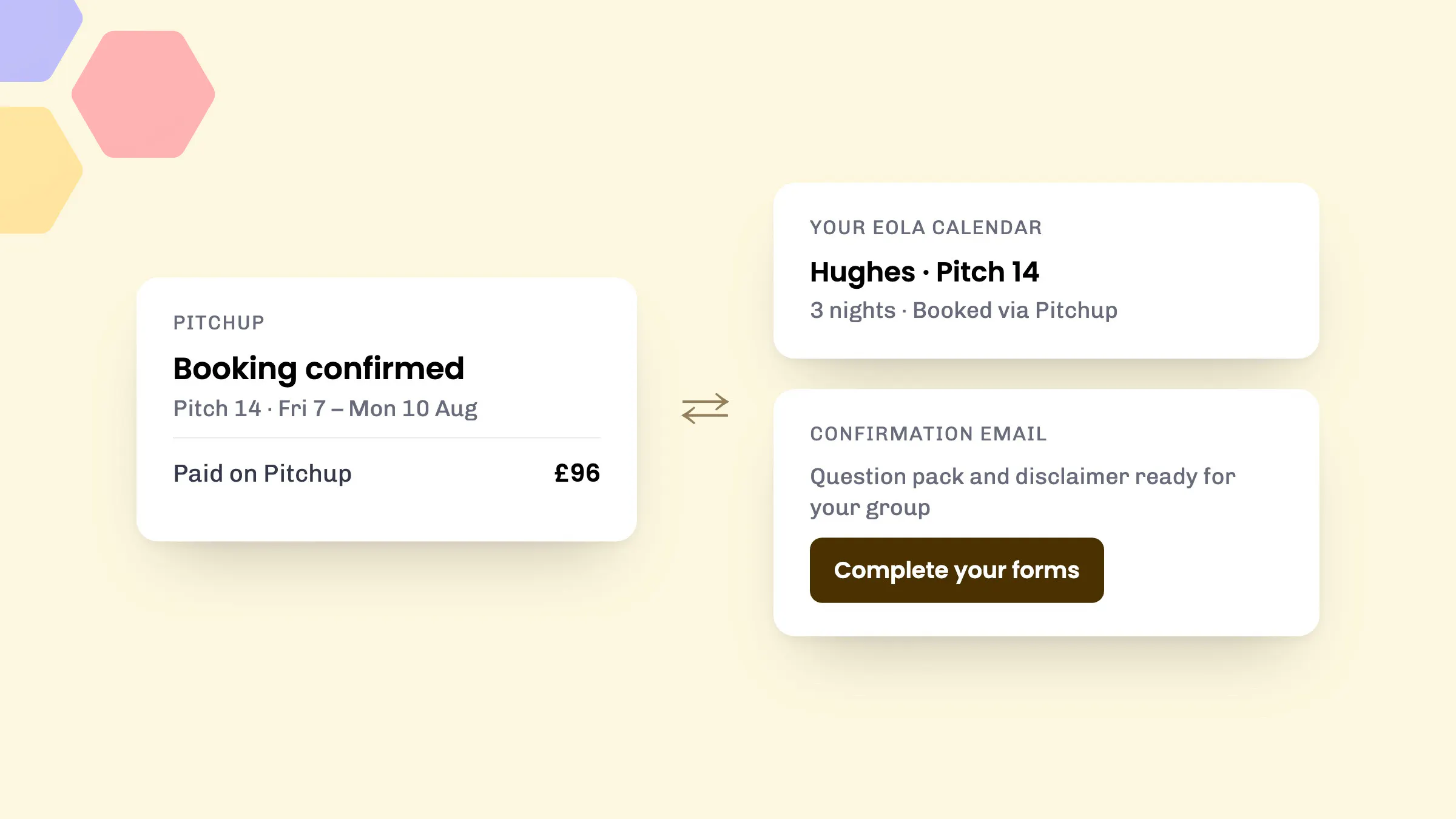
How the sync works
- Confirmed bookings made on Pitchup come into eola automatically, for the accommodation and pitches that are linked to Pitchup. They appear in your calendar with your other bookings.
- If a Pitchup booking moves dates or pitch, eola updates it. If it’s cancelled on Pitchup, it’s cancelled in eola too.
- Bookings made in eola for linked spaces, whether online or at the front desk, are sent to Pitchup, and changes to them are sent too.
- Only accommodation and spaces linked to Pitchup are synced. Anything else stays in eola only.
Payment for Pitchup bookings is taken on Pitchup. Customers reschedule, cancel or ask for refunds through Pitchup, and their confirmation email tells them so.
What Pitchup customers get from eola
Customers who book on Pitchup get the same eola emails as your other customers, so they arrive knowing what to expect.
- A booking confirmation from your business, with their pitch number and a note that payment was taken on Pitchup.
- Since September, your disclaimers and question packs are created automatically for Pitchup bookings. The confirmation email links to them, so the organiser can complete them and invite their group before they arrive.
- Since July, upcoming booking reminder emails go out for Pitchup bookings too.
- The confirmation also suggests activities at your centre during their stay, so campers can find your activities before they arrive.
More reliable syncing
We’ve made the connection more dependable this year. Since February, eola retries automatically when Pitchup’s servers don’t respond. Since May, sending bookings to Pitchup copes better when Pitchup is slow to reply.
If a booking still can’t be sent to Pitchup, your team gets a notification in eola with a link to the booking, so you can check it on Pitchup.
How to set it up
eola manages your Pitchup listing and the link between Pitchup and eola. Your part is connecting your Pitchup account. Before you start, you’ll need your accommodation and spaces set up in eola.
- Ask the eola team to switch on Pitchup for your centre. Email help@eola.co or use Chat with support in your dashboard.
- Connect your Pitchup account. Go to Toolset > Pitchup and, on the Setup tab, enter your Pitchup API key and save. You’ll find it on Pitchup.com: select Me, then My details, and scroll to the API key section.
- Our team sets up and manages your listing on Pitchup, and links each accommodation product and space in eola to the right pitch type and pitch.
- Once everything is linked, bookings sync both ways. You can see what’s linked on the Accommodation and Spaces tabs under Toolset > Pitchup.
Good to know
- Pitchup bookings that are only reserved, not confirmed, aren’t brought into eola until they’re confirmed.
- If a Pitchup booking is moved to a pitch that isn’t linked to eola, it’s removed from eola. Let us know when you add new pitches so we can link them.
- We can link as many accommodation products and pitch types as you have.
See eola in action
Want to see how this could work for your business? Book a demo or get in touch with our team.