Activities and accommodation in one booking system
If you run a campsite, an outdoor centre or a site with glamping, your guests rarely come just to sleep. They want to paddle, climb or ride while they’re with you. Since December 2025, eola lets you sell pitches, pods and rooms alongside your activities, from the same dashboard, calendar and booking widget.
How accommodation works in eola
Accommodation is built from three parts, so you can keep it simple or sell the same pitches in several ways.
- Space types: groups of similar spaces, such as “Medium grass pitch”, “Hardstanding with electric” or “Premium double room”. You can add a site map to each one.
- Spaces: the individual pitches, pods or rooms that guests book. Together they make up your inventory.
- Accommodation products: what customers see and buy. Each product sells a space type, so the same pitches could be sold as a standard stay, a members-only offer or a pets-welcome option.
Each product has its own check-in and check-out times, a maximum number of guests per space and a price per night. You can charge a flat price, a base price with a charge for extra people, or a price per person.
What your customers see
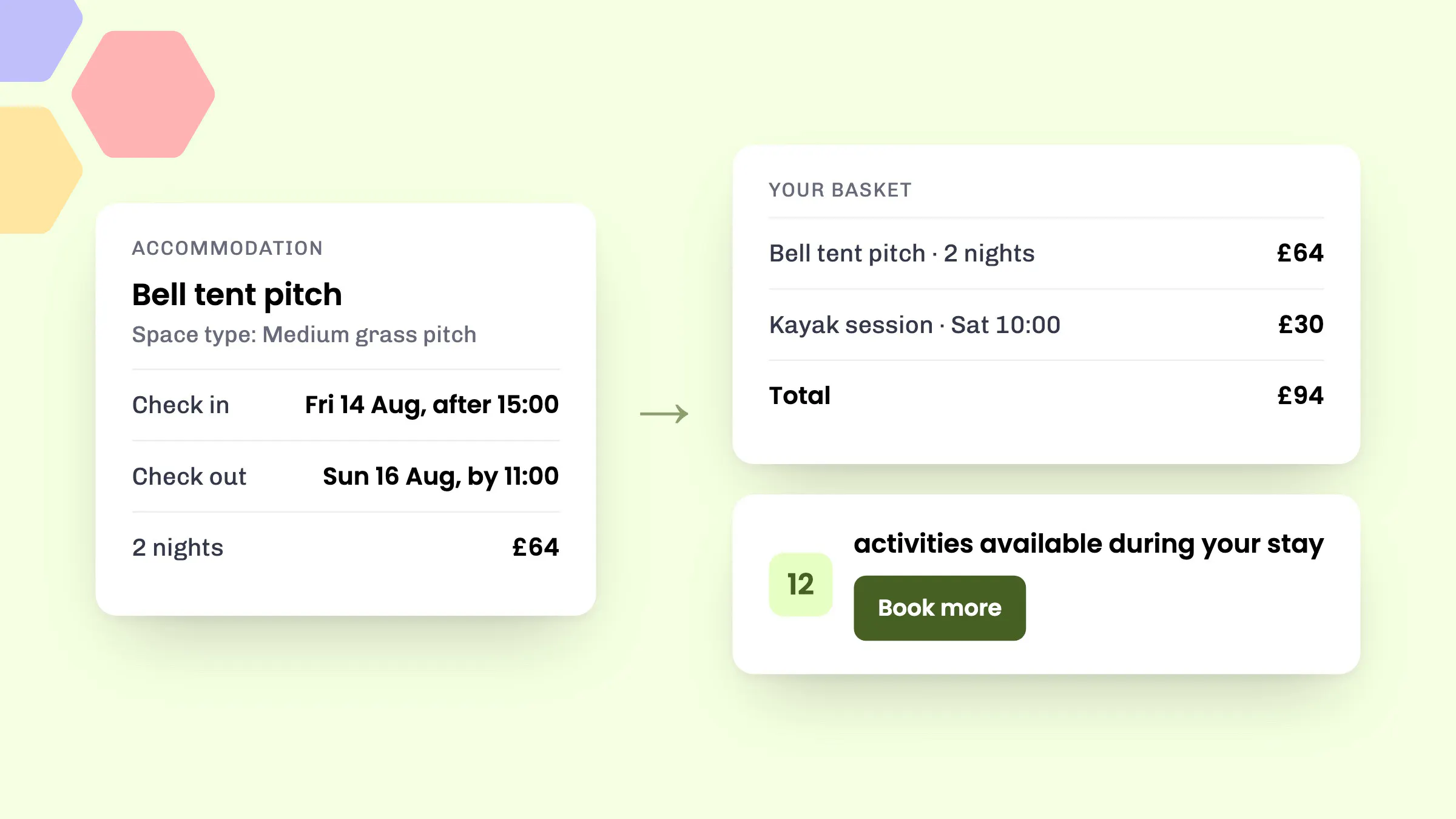
Customers choose their check-in and check-out dates, pick a space and add the stay to their basket. Along the way they see your check-in and check-out times, and a “From” price per night when browsing your stays.
You can put stays into categories that suit your site. Use one category to rename accommodation to something like “Camping & Glamping”, or split it into “Camping” and “Glamping”.
Stays and activities in one basket
When a customer adds a stay to their basket, eola shows how many activities are available during their stay. Book more takes them to your activities, already filtered to their dates. If you only offer rentals, it takes them there instead.
A family booking two nights on your campsite can add a kayak session for Saturday morning and pay for everything in one checkout, rather than booking the stay in one place and the activities somewhere else.
Since August, reminder emails for upcoming accommodation bookings also suggest activities at your centre. They arrive just as guests start planning their trip.
Running it day to day
- Calendar: accommodation bookings sit in the all-day section of the week and day views, so they don’t crowd out your sessions. The Timeline view shows each space, with the organiser’s name on every booking.
- Filters: use Product type to show only accommodation, Product to focus on one stay, and Space type to see one group of spaces.
- Archiving: a space with past bookings can be archived instead of deleted. It can’t be booked again, and your reports keep its history.
- Memberships: stays can carry membership benefits or be made members-only.
- Deposits and seasonal pricing: both work with accommodation, so you can take part-payment on bigger stays and charge more in peak weeks.
How to set it up
- Go to Toolset > Apps, open Accommodation and select Add to eola. If you can’t see the option, contact our team and we’ll switch it on for you.
- Go to Toolset > Spaces and select Create. Name your space type, add a site map if you have one, then list your spaces. You can add them one at a time, or 10 or 50 at once.
- Go to Products > Accommodation and add your first accommodation product. Give it a title and space type, then set who can take part, maximum guests per space, minimum nights, check-in and check-out times, a tagline and a description.
- Set your pricing per night: a flat price, base plus per person, or per person.
- Add an image, and choose whether the stay is visible to the public or open to members only.
For more on calendar views and filters, see our help article on viewing your calendar.
Good to know
- You can set a minimum of 1, 2 or 3 nights per booking. We suggest keeping it low so customers don’t get stuck choosing dates.
- A space with upcoming bookings can’t be archived until those bookings are moved to another space.
- If you also list on Pitchup, those bookings can come into eola too.
See eola in action
Want to see how this could work for your business? Book a demo or get in touch with our team.