Seasonal pricing for activities and accommodation
Most operators don’t charge the same in August as they do in November. Seasonal pricing lets you set higher or lower prices for chosen dates on each product, so you don’t have to edit your prices every time the season changes. We built it as part of our accommodation work in December 2025, and it works for activities too.
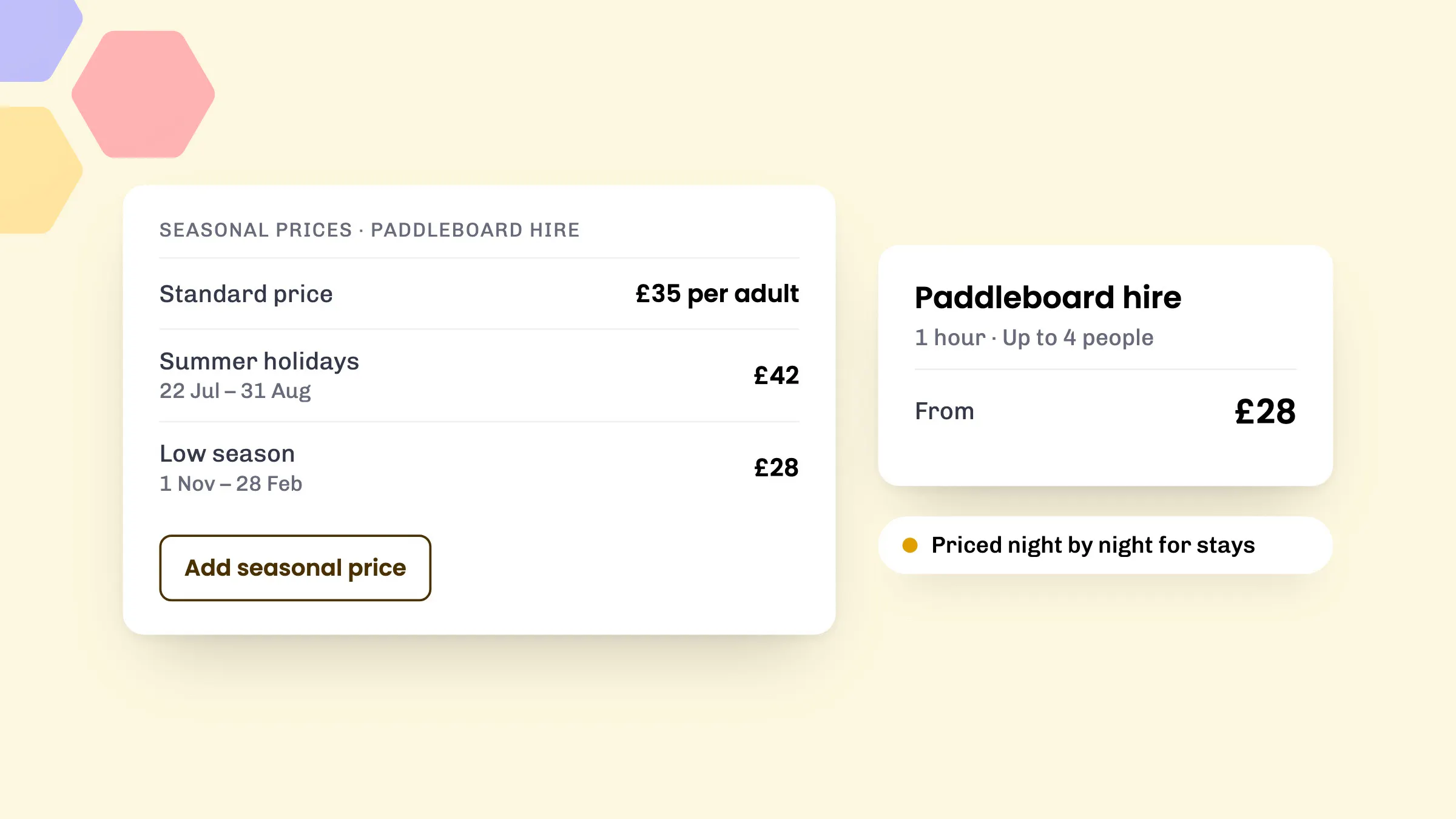
How it works
Every product keeps its standard price. You then add seasonal prices for any date ranges where the price should be different. Any date without a seasonal price stays at the standard price.
- High season: charge more for school holidays, bank holiday weekends or your busiest summer weeks.
- Low season: lower your prices in the shoulder months to keep sessions and pitches full.
- As many as you need: add as many seasonal prices as you like to each product, as long as the dates don’t overlap.
Seasonal prices follow the product’s pricing model. For a flat price you set a new flat price. For base plus per person you set the base price and the price per extra adult or child. For per person pricing you set the adult and child prices. You only need to fill in the prices that change; anything left blank stays at the standard price.
What your customers pay
- Activities are priced on the day the session starts, so a multi-day course is charged at one price.
- Accommodation is priced night by night. If a stay runs from a standard-price weekend into a high-season week, the total reflects the price of each night.
- If a seasonal price is lower than your standard price, the “From” price on your widget shows the lower figure, so customers browsing in a quiet month see your best price.
Customers simply see the right price for the dates they choose. There’s nothing extra for them to do.
How to set it up
- Go to Toolset > Apps, open Seasonal pricing and select Add to eola.
- Go to Toolset > Seasonal pricing. Your activities are listed in two groups, with and without seasonal prices. If you sell accommodation, it has its own tab.
- Choose a product. Its standard price is shown at the top of the page, with a link to edit it.
- Pick a Start and Finish date, enter the prices for those dates and select Save.
- Select Add seasonal price to add more date ranges.
You can also get there from a product’s pricing page using the Configure seasonal prices link, which shows whether seasonal prices are already set. If you need a hand adding an app, see our help article on using the eola App Store.
Good to know
- Dates that touch count as overlapping. If one season ends on 31 July, start the next one on 1 August.
- Delete all removes every seasonal price on a product at once, putting it back to its standard price.
- Seasonal pricing covers activities and accommodation. If you sell stays as well as activities, see how they work together in one system.
See eola in action
Want to see how this could work for your business? Book a demo or get in touch with our team.