Deposits: let customers secure a booking with a part payment
Deposits let customers secure a booking by paying part of the price upfront, with the rest due before their visit. They help with bigger purchases booked well ahead, like a family stay or a group session, where paying everything at once can put people off.
How deposits work for you
Deposits are set per product, so you decide which activities and accommodation offer them. For each one you choose:
- Fixed amount: a set deposit. It can’t be more than the product’s lowest price.
- Percent of price: a percentage of the booking price.
- Minimum time until booking: how many days before the start date the deposit option stops showing. The default is 56 days and the shortest is 7, so nobody books next week’s session on a deposit.
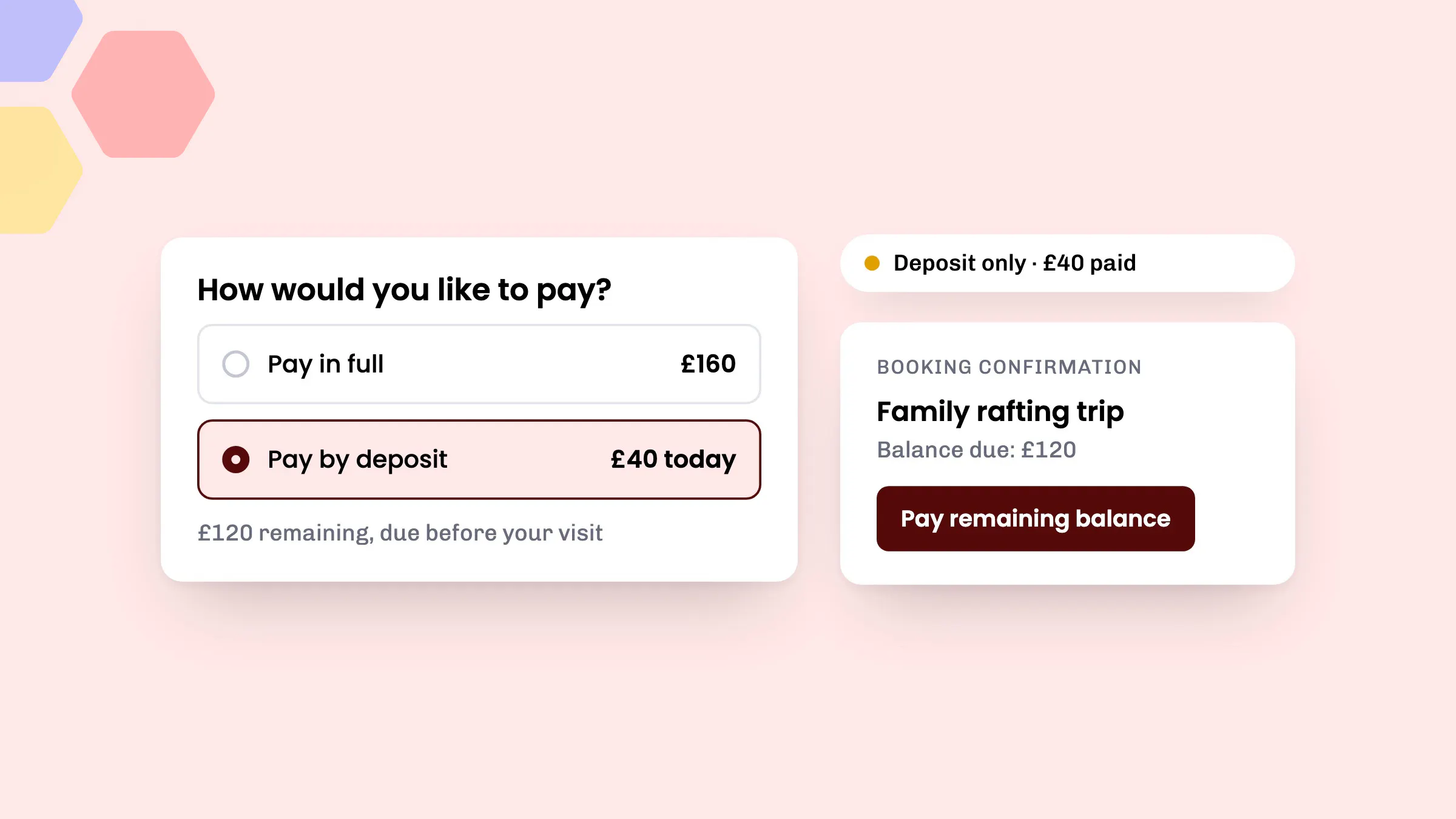
When a customer pays a deposit, the booking shows as “Deposit only” with the amount paid, and you get an email when the balance comes in.
What customers see
Since May, product pages show a Pay by deposit note, so customers know the option is there before they reach checkout. At checkout they’re asked “How would you like to pay?” and can pick Pay in full or Pay by deposit.
A basket can mix deposit and non-deposit items and still be paid in one go. The first payment covers the deposits plus the full price of everything else. If a deposit item in the basket starts sooner than its minimum time, the deposit option won’t show.
Collecting the balance
The confirmation email includes a Pay remaining balance button, and the customer’s booking page shows that a balance payment is needed. We send up to four reminder emails before the booking, and they stop once the balance is paid.
If a customer would rather pay in person, you can take the balance at the front desk by card reader or cash. You can also resend the balance link from a session’s Comms page, using Resend remaining balance payment link (deposits).
Deposits in your unpaid items list
Bookings where only the deposit has been paid appear under Sales > Unpaid items, in their own section: Part-paid bookings (deposit only). Use Copy to grab the payment link and send it yourself, or Checkout to take the balance there and then. Read more about chasing payments in our guide to payment links and unpaid items.
Refunds and changes
If you refund a booking where only the deposit has been paid, the amount available to refund is the deposit the customer paid. If you reschedule a deposit booking, the balance reminders move to fit the new date.
How to set it up
Deposits is currently in Alpha in the eola App Store, so our team switches it on for you.
- Go to Toolset > Apps and open Deposits.
- Select Contact us and ask our team to turn it on.
- Once it’s on, open the activity or accommodation you want to offer deposits on and go to the Pricing step.
- In the Deposits section, choose a Deposit type: Fixed amount or Percent of price.
- Enter the Deposit value and, if you like, change the Minimum time until booking (days).
- Save. Customers will see the option on dates outside the minimum time.
Our help article Use the eola App Store explains how apps work.
Good to know
- Deposits can be set on activities and accommodation.
- Discount codes and vouchers need to be added at the first checkout, not when paying the balance.
- Payment links and invoices can’t be used for a remaining balance from your dashboard checkout. Use the balance email, card reader or cash instead.
See eola in action
Want to see how this could work for your business? Book a demo or get in touch with our team.