The customer record: everything about a customer in one place
When a customer rings up or walks in, you want their history without clicking through five pages. The customer record brings together everything they’ve bought from you, what they still owe and any notes your team has added. We redesigned it in June.
Finding a customer
Use the search (magnifying glass) at the top of your dashboard. Type a name or email and pick the customer from the results. You can also find customers under Reports > Customers.
Search also finds customer notes, so you can look up a membership number or car registration you’ve saved against someone.
What’s on the record
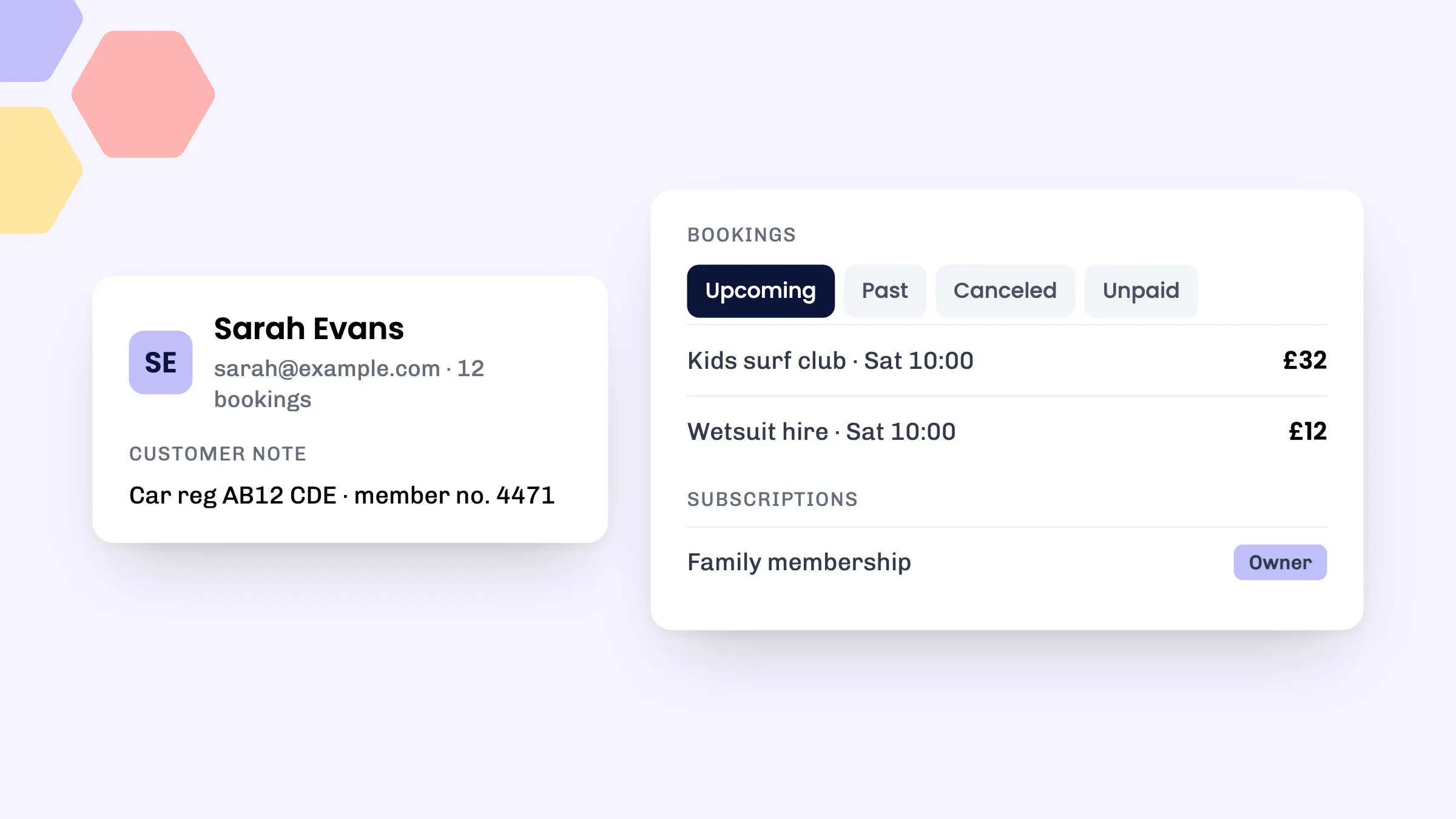
At the top you’ll see the customer’s email, phone number, how many bookings they’ve made with you and whether they’re subscribed to your emails.
Below that, each type of purchase has its own section, with tabs to switch between states:
- Bookings: Upcoming, Past, Canceled and Unpaid.
- Activity vouchers, class passes and credit vouchers: Redeemable, Redeemed and Expired.
- Subscriptions: Active, Past Due, Canceled and Paused, showing whether the customer is the Owner or a Member.
- Store items: Paid and Unpaid.
- Custom charges: Paid and Unpaid.
Unpaid items on the record
The Unpaid tabs show anything this customer still owes, from a booking paid by link to a store item or an extra charge. Each row has a Pay link that opens their basket in your dashboard checkout, so you can take payment by card reader or cash while they’re at the desk. For everything owed across all customers, see our guide to payment links and unpaid items.
Customer notes
The Customer note sits on the left of the record. Use it for anything your team should know next time, like a membership number or a car registration for parking. Because notes are searchable, typing that registration into search brings up the right customer.
If you use the Approvals app, the approvals you’ve given a customer are shown here too, and you can update them with Update approvals.
How to use it
- Click the search (magnifying glass) at the top of your dashboard.
- Type the customer’s name, email or something from their note.
- Select the customer in the results to open their record.
- Use the tabs in each section to see upcoming, past, cancelled or unpaid items.
- To add a note, click Add next to Customer note. To change it, click Edit.
Good to know
- Notes belong to your business. Other eola businesses the customer books with don’t see them.
- To fix a typo in a customer’s details, see A customer has inputted their name or email address incorrectly.
- If the change won’t save, I am unable to edit a customer’s name or email address explains why and what to do next.
- Members can now have their own logins and QR codes. Read more in our post on new membership features.
See eola in action
Want to see how this could work for your business? Book a demo or get in touch with our team.