Chat with support and the noticeboard: help inside your dashboard
When something isn’t working on a busy Saturday, you shouldn’t have to dig out an email address. Since September, you can chat with support without leaving your eola dashboard. A new noticeboard on your dashboard also keeps you up to date with what’s changed and what’s coming up.
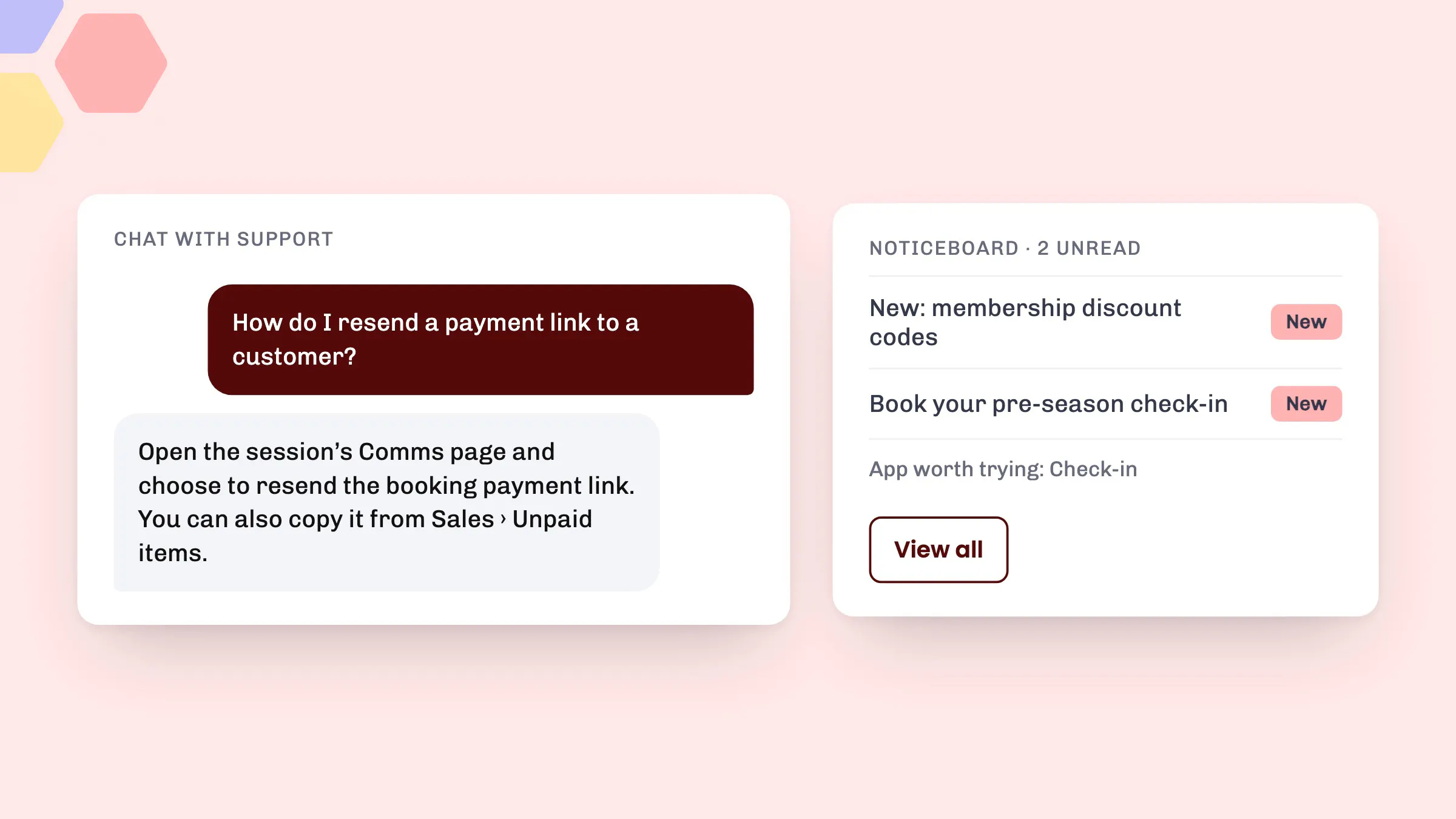
Chat with support
Chat with support in the dashboard sidebar opens a chat window inside eola. eola’s assistant answers straight away. If it can’t help, your conversation is handed to our team.
The same chat opens from the contact links on app and report pages. So if you’re reading about an app in Toolset > Apps and have a question about it, you can ask there and then.
How to start a chat
- In the sidebar, select your centre’s name to open your account menu.
- Choose Chat with support.
- Type your question in your own words. The assistant replies straight away, and passes the conversation to our team if it can’t answer.
Chat with support appears once the chat has loaded. If you don’t see it, you can still email help@eola.co, or browse the Help Centre from the same menu.
The noticeboard
Your dashboard now has a Noticeboard. It’s where eola tells you about things in the product, such as:
- a feature we’ve released
- an app worth considering for your business
- a reminder, like booking your pre-season check-in
New messages wait on your dashboard when you sign in, with a count of how many are unread. Select one to read it in full. Opening a message marks it as read.
Choose View all to see everything we’ve sent you, newest first, read and unread. Nothing disappears, so you can look back at a message any time.
Why we added it
Emails about product changes are easy to miss in a busy inbox, especially in peak season. The noticeboard keeps them in the place you already check every day, alongside your bookings and revenue. And when you have a question, chat means you can ask it without leaving the page you’re stuck on.
Good to know
- Noticeboard messages are sent to people, not centres, so everyone on your team has their own read and unread messages.
- If you work across several centres, you’ll see the same messages on each, and reading one anywhere marks it as read everywhere.
- The dashboard shows your five most recent unread messages. View all shows the rest.
- New team members see messages from the month before they joined onwards, so they start with recent news rather than a long backlog.
See eola in action
Want to see how this could work for your business? Book a demo or get in touch with our team.