Managing questionnaires and question packs for your customers
Question packs collect what your team needs to know before a session, like experience levels or anything instructors should be aware of. The hard part is getting every answer in before the day, especially with families, groups and regulars who book every week. This year we’ve made questionnaires easier for customers to finish and easier for your team to manage.
Easier for customers
- Missing answers are pointed out. If a customer presses Submit with a mandatory question unanswered, the questionnaire shows them which one, instead of leaving the button greyed out.
- Regulars can submit saved answers. Customers who answer the same questionnaire every week can submit it when their saved answers are still right, without changing anything first.
- One set of answers for several bookings. Customers booking more than one product with the same question pack can use the same answers for all of them.
- Members answer when they join. A membership can have its own question pack, and you’ll find a member’s answers on their subscription under the Question Pack tab.
Reviewing answers
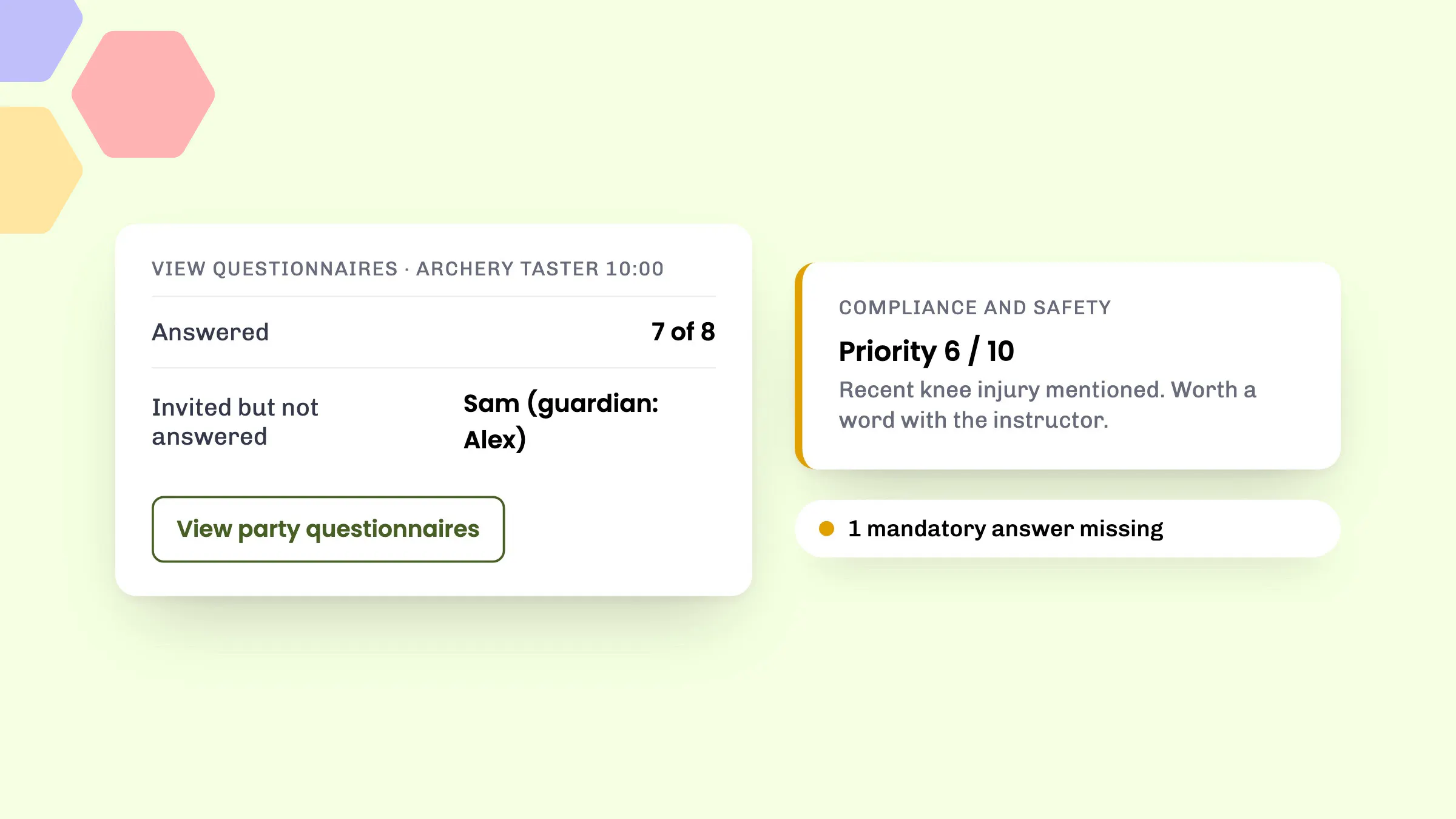
Open a session from your calendar and click View questionnaires. You’ll see how many questionnaires have been answered, who’s been invited but hasn’t answered, and everyone’s answers grouped by question. The button turns red when answers are missing or something has been flagged.
For a busy session, click View party questionnaires on a booking to see just that party’s answers, grouped by party member. It’s quicker when one family or group needs checking at the desk.
Download questionnaires sends you a report of the session’s answers by email.
Completing or updating answers for a customer
Sometimes a customer can’t finish online, or rings to correct an answer. On the View questionnaires page, click their name (or their guardian’s, for a child) under Invited but not answered to fill it in with them, or under Edit answer sets to change it. Tick Completed on behalf of the customer by [your name] before you submit, and the page will show who last edited it.
To nudge a customer instead, use the session’s Comms page to resend their question pack with a short message.
AI answer checking
With the Compliance and safety app, AI reviews every completed questionnaire and flags answers your team may want to look at more closely. It takes into account the requirements you’ve set on your activities and rentals, and each flagged answer shows a priority score out of 10 with a short explanation. In September we fixed an issue where a child could be wrongly flagged as too young when a date of birth was given.
Think of it as a second pair of eyes. Your team should still review customers’ answers before the session.
How to set it up
- Go to Toolset > Policies > Question packs and click Create questions.
- Name your question pack and add your questions. For each one, choose a Response Type (Yes/No or Text) and whether it’s Mandatory.
- Click Create question pack.
- Assign it to an activity in the Docs and legal section of the activity’s Options step. You can also assign question packs to rentals, accommodation and memberships.
- For AI checking, go to Toolset > Apps, open Compliance and safety and select Add to eola.
Question packs and disclaimers are included on every plan, including Starter. The AI questionnaire checker is part of Pro. Our help articles Create a question pack and Create a disclaimer cover each step.
Good to know
- Each product or membership can have one question pack and one disclaimer at a time.
- You can let regular customers remember a signed disclaimer, so they don’t sign the same one every visit.
- New Pitchup bookings now create question packs and disclaimers for the organiser too.
- For more on why digital paperwork matters, read Streamlining waivers and questionnaires in the activity industry.
See eola in action
Want to see how this could work for your business? Book a demo or get in touch with our team.