How to use your eola calendar
We understand the importance of having a clear and simple calendar to keep yourself organised and up to date on all of your bookings. It is the quickest way to get an overview of your workday, and see what you have coming up.
This is a step-by-step guide showing you our top tips to get the most from your eola calendar.

Populate your calendar
Start with creating your activities to view them on your calendar. Read more on how to set up activities.
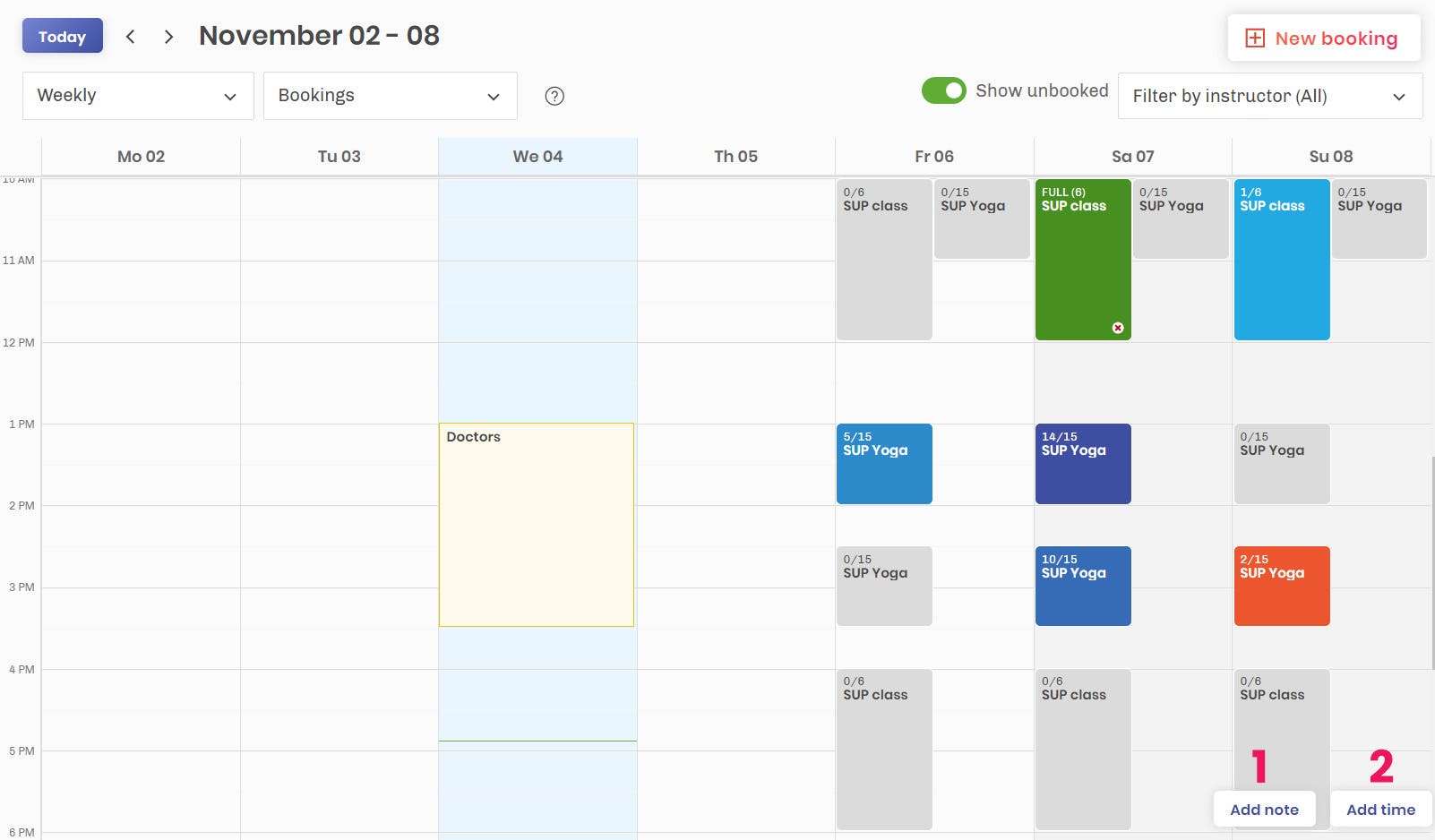
1. You can add useful notes such as doctor's appointments or holidays directly to the calendar. You can then assign staff members to specific notes.
2. You can also create new time slots for your activities directly in the calendar.
Setting up something similar to what you already sell? Go to Products, open Activities, Rentals or Accommodation and select Duplicate on the one you want to copy. Tick Copy the schedule to bring its upcoming and repeating times across, then select Create copy. Closed sessions, capacity changes, staff and bookings stay with the original, so check the copy’s times before it goes live.
View your calendar
There are several features you can use to filter your calendar view.
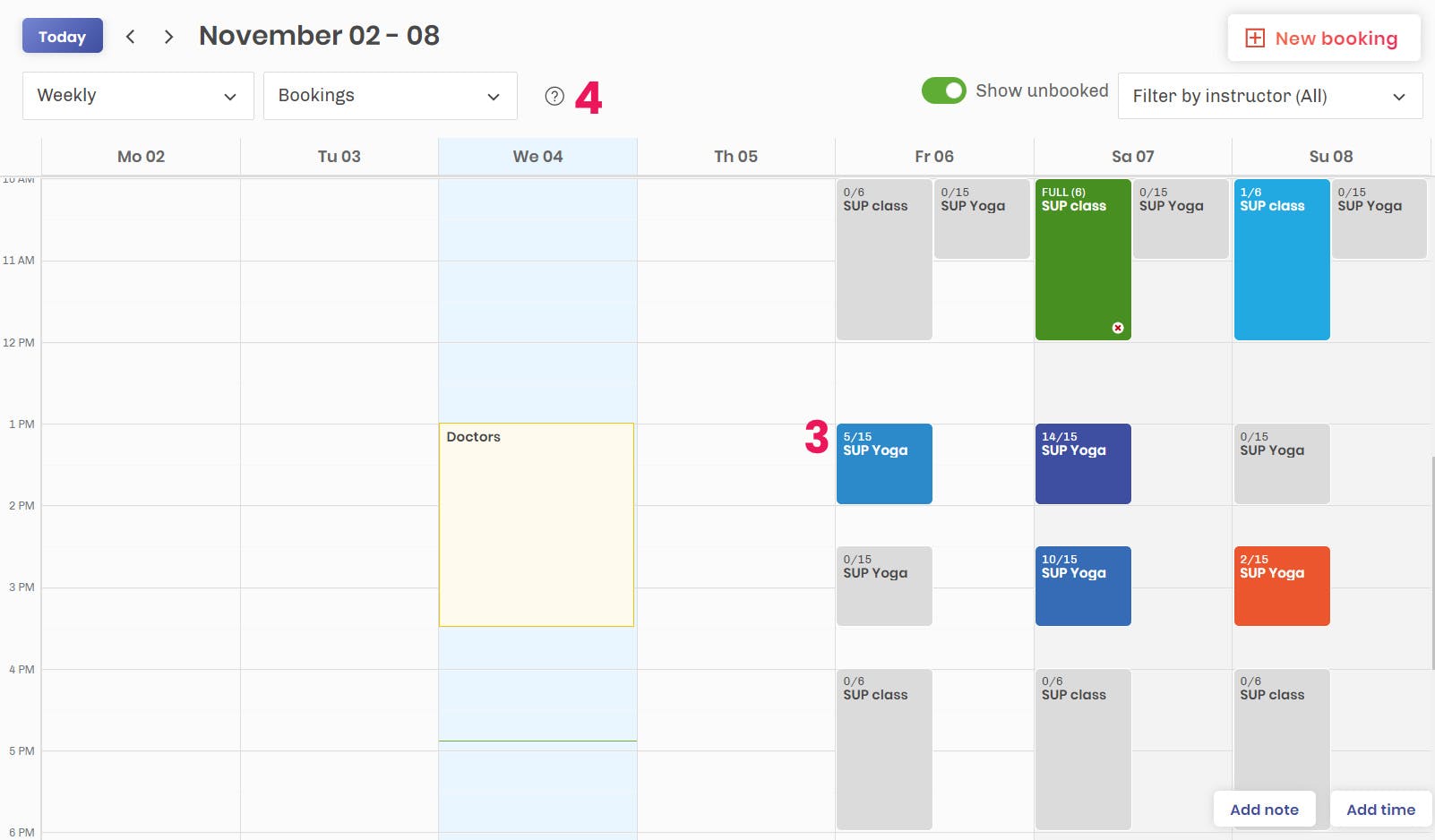
3. In the default view you will see an overview of your activities and which of the activities have been booked.
4. Use the question mark icon to get more information about the colour codes.
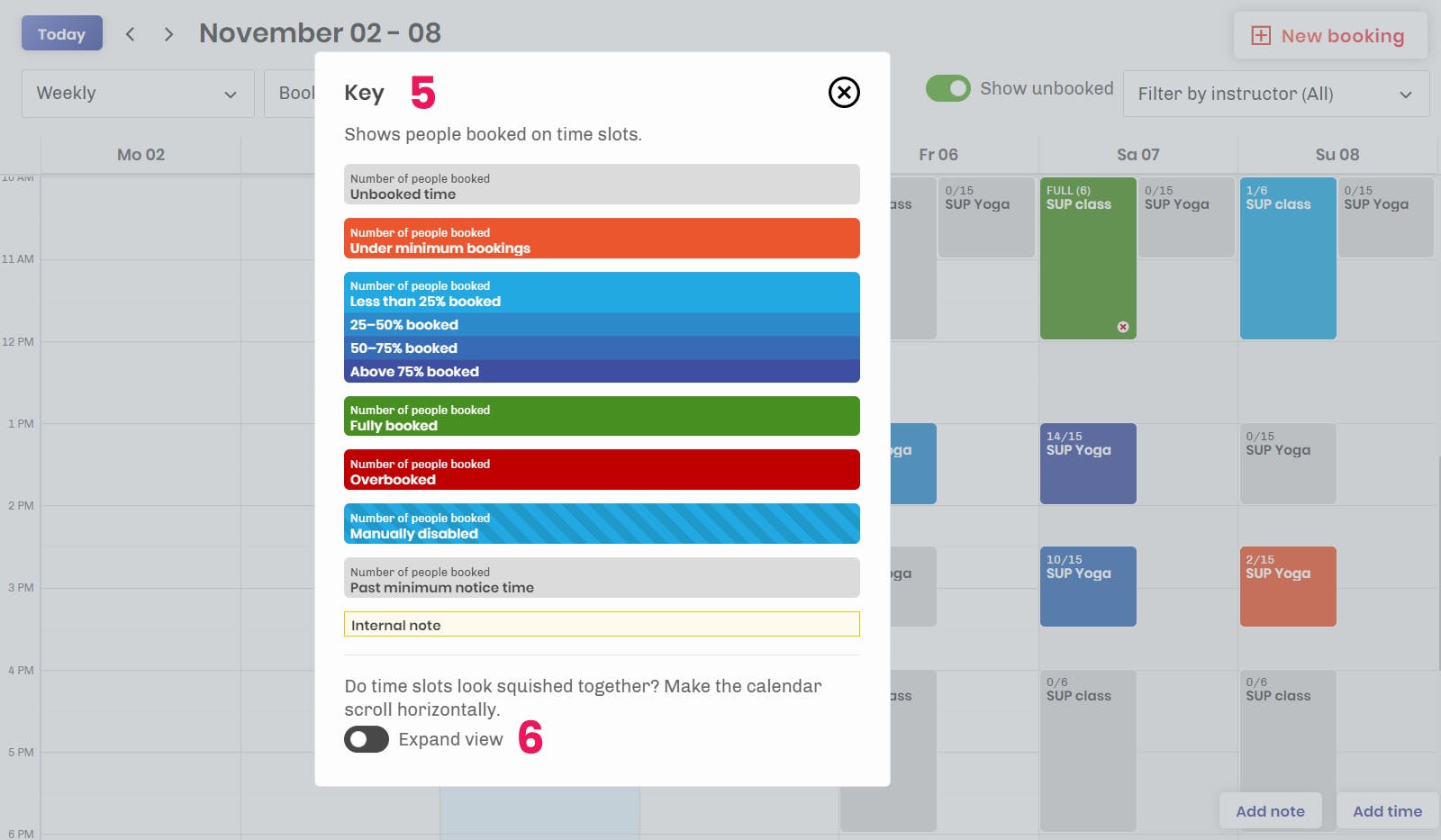
5. When clicking on the question mark you'll see the pop-up below explaining the colour codes.
6. You can also choose to expand the view of the calendar by shifting the toggle.
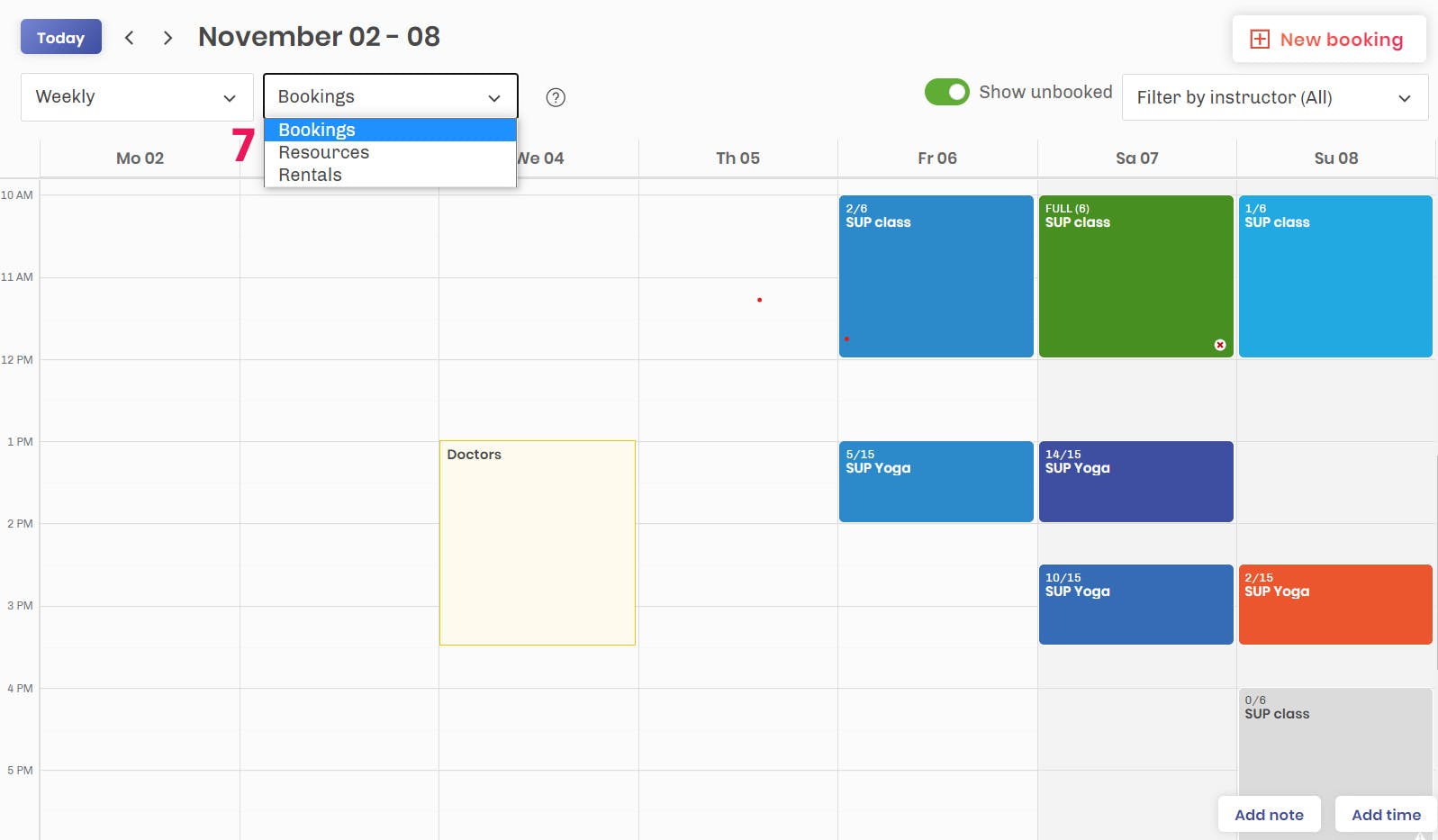
7. You can filter your calendar using the dropdown menus at the top of the page.
Manage your calendar
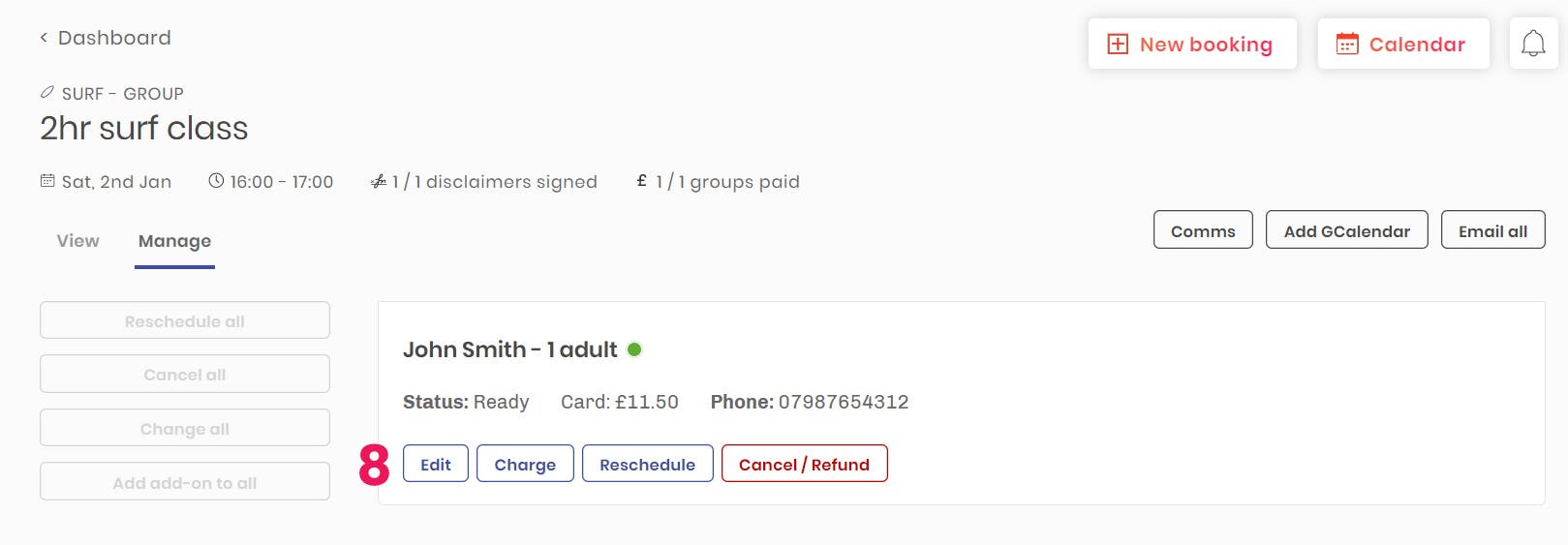
You can further use the calendar to manage your activities directly by clicking a specific activity slot.
8. Manage specific bookings in terms of refunds, charges, and rescheduling.
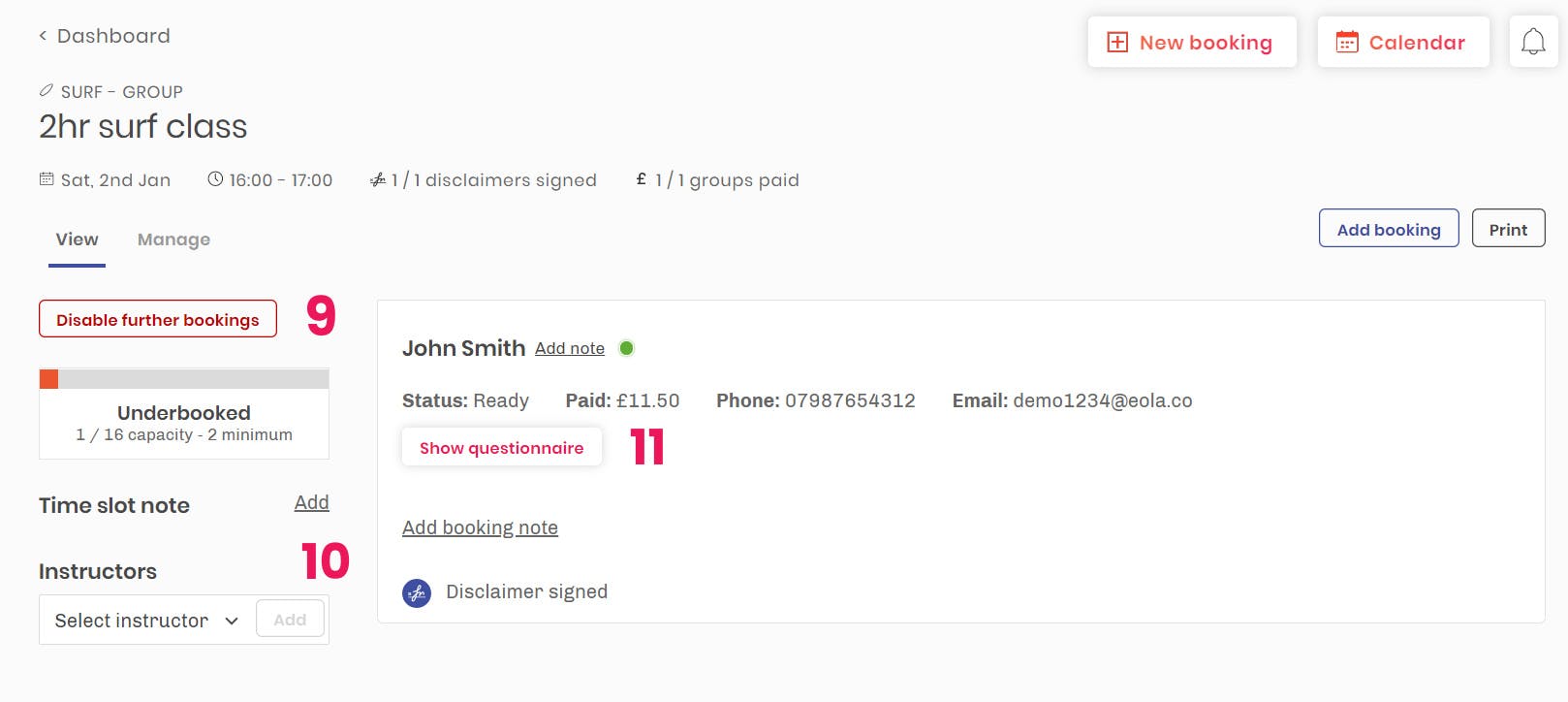
9. Here you can choose to disable further bookings for the activity time slot.
10. You can also assign instructors and add time slot notes.
11. Additionally, you can view question packs and activity disclaimers.
See who changed a session
On a session’s page, the link under its date and time shows the latest change and who made it, or History if nothing has changed. Select it to see every change to the session’s capacity, further bookings, minimum notice, note and times, and who made each one: one of your team, a customer, eola, or a connected service such as Pitchup. Changes to its schedule, or to its activity’s capacity, are listed separately. History starts from 6 October 2026.
Having a simple and easy-to-view calendar can do a lot to help with your efficiency. With everything you need in one place you will save time on admin and be able to focus on creating outstanding experiences for your customers.
Questions and answers
Can I add staff holidays and appointments to the eola calendar?
Yes. You can add notes such as doctor’s appointments or holidays directly to the calendar, then assign staff members to those notes.
Can I refund or reschedule a booking from the eola calendar?
Yes. Select an activity slot on the calendar to manage its bookings, including refunds, charges and rescheduling.
Can I stop further bookings on one session from the eola calendar?
Yes. Select the activity slot on the calendar and choose to disable further bookings for it. You can also assign instructors and add time slot notes there.
For more updates and tips, follow us on LinkedIn and Instagram.
Looking for more information on eola?
Read more:

The Customer Experience- booking an activity

Sell more vouchers this Christmas
See eola in action
Want to see how this could work for your business? Get in touch with our team.

New to eola?
eola is the booking system made for activity and experience providers. Take bookings and payments online, manage every session from one calendar, and put your activities in front of new customers on the eola marketplace. Book a demo and we’ll show you how eola could work for your business.