The eola booking widget: what your customers see when they book
The eola booking widget is how your customers book with you online. It sits on your own website behind a Book now button, so they can browse, pay and sort out their paperwork without leaving your site. Here’s what they see at each step, from the first click to the emails that follow.
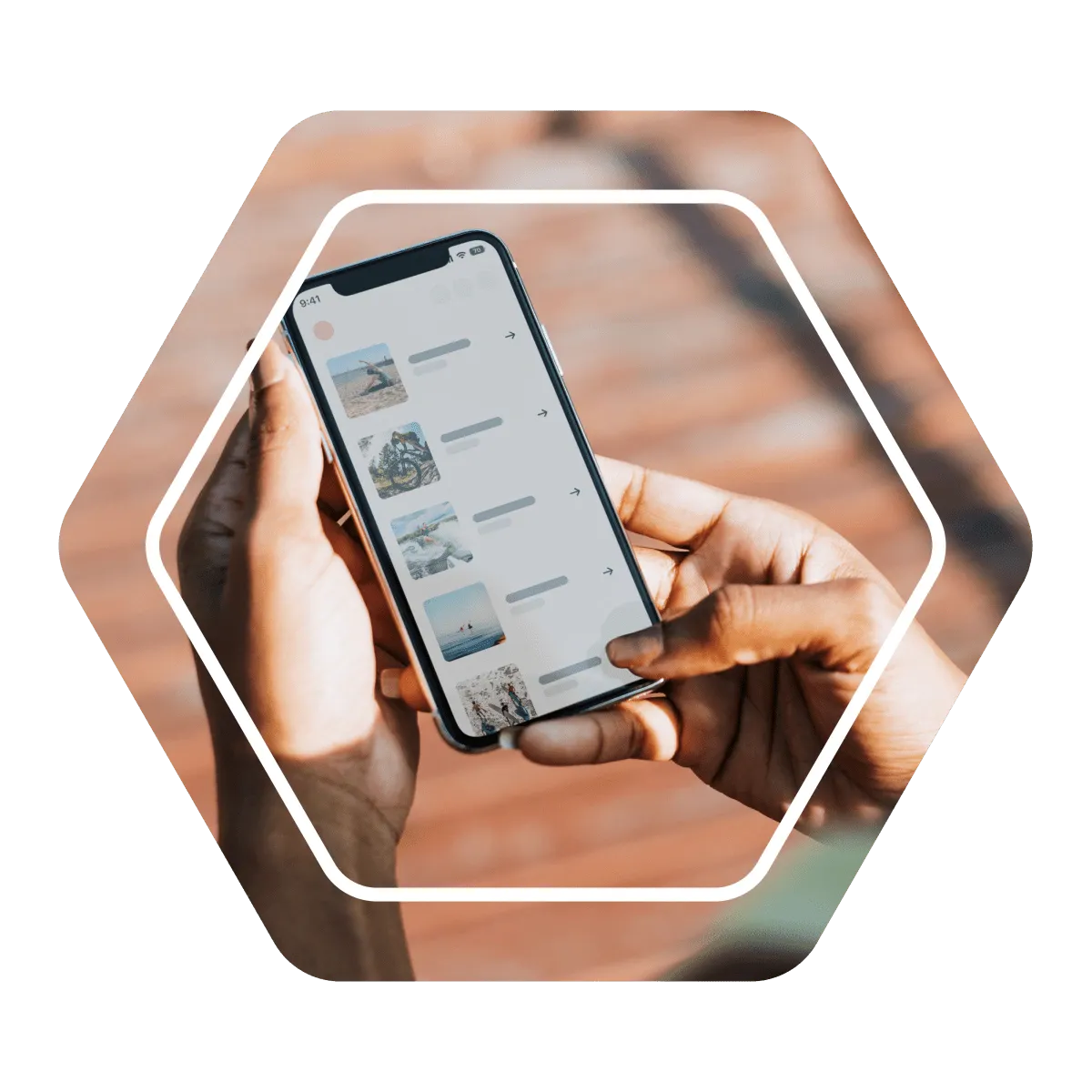
On your website
You add the widget with one line of code, which works with almost any website builder, or with a direct link if your web designer would rather make their own button. You choose where the Book now button sits and its colour, and your logo, cover photo and business details come from your centre settings. You can also run several widgets, for example one for watersports and one for stays.
Browsing what you sell
Customers start with your products, grouped into the categories you set up, each with an image and a short tagline. Activity, rental and accommodation cards lead with a big photo and the key details, with labels such as Few spots left or Members only. Fully booked activities stay visible, greyed out and marked Sold out, so customers can see what’s coming up.
Each product page shows a short list of highlights, the description and the timetable. Sold-out sessions stay on the timetable, times with only a few places left say so, and a sold-out day points to the next day with space. If you offer deposits or a membership with a discount on that product, the page says so before checkout.
The basket
With the shopping basket, customers can add several things and pay once: activities, rentals, stays, gift vouchers, class passes and memberships. Their place is held while they finish booking, and the basket shows the booking fee before they pay. Someone booking a stay is shown the activities running during their dates.
Checkout
At checkout, customers enter their details once. Returning customers’ saved details are suggested, and if an email address looks mistyped, the checkout asks them to check it, so your confirmation emails reach them.
- Codes: there’s one box for gift vouchers, class passes, discount codes and membership discount codes.
- Paying: customers pay by card, or by Apple Pay or Google Pay where their phone or browser supports it. The checkout shows the cards you accept and that payment is secure.
- Deposits: if a product offers one, customers choose Pay in full or Pay by deposit.
- Keeping in touch: customers agree to your terms and can choose to hear from you again.
After payment: details, disclaimers and questions
Once they’ve paid, customers see what you still need before they arrive, all in one place:
- Sign disclaimers for everyone taking part.
- Answer your questionnaires. Customers booking several products with the same question pack can use one set of answers for all of them.
- Add attendee details. The organiser adds the rest of the group, and each person gets their own link to confirm their details and complete their paperwork.
The organiser can see whose paperwork is still missing, and can change or remove people on the booking later from their eola account. New members add the people on their membership here too.
The emails that follow
- Confirmation: sent straight away with everything about the booking. If you use QR code check-in, it includes the customer’s QR code.
- Reminder: sent before the visit, and it flags anything they still need to fill in.
- Balance reminders: for deposit bookings, with a link to pay what’s left.
- Follow-up: sent after the visit, and it can ask for a review.
Customers can sign in to their eola account at any time to see their bookings, memberships, class passes and vouchers.
Which plan includes what
Online bookings, the shopping basket, online waivers and questionnaires, customisable branding and the eola marketplace are included on every plan, including Starter. Multi language support, analytics tracking and customer check-in are part of Pro. Customers pay a 5% booking fee at checkout.
How to set it up
- Go to Toolset > Widget > My widgets and open your widget. Primary is the default.
- Under Website integration, choose where the Book now button appears and its colour, then click Save.
- Copy the script code and paste it into the head section of your website, or send it to your web designer. Use the direct link instead if you want your own button.
- To group your products, switch on Custom categories in Toolset > Apps, then choose them under Product categories in your widget.
Our help articles Add your widget to your website and Set up custom categories cover each step.
See eola in action
Want to see how this could work for your business? Book a demo or get in touch with our team.