Discount codes: run Black Friday offers and see what each one earns
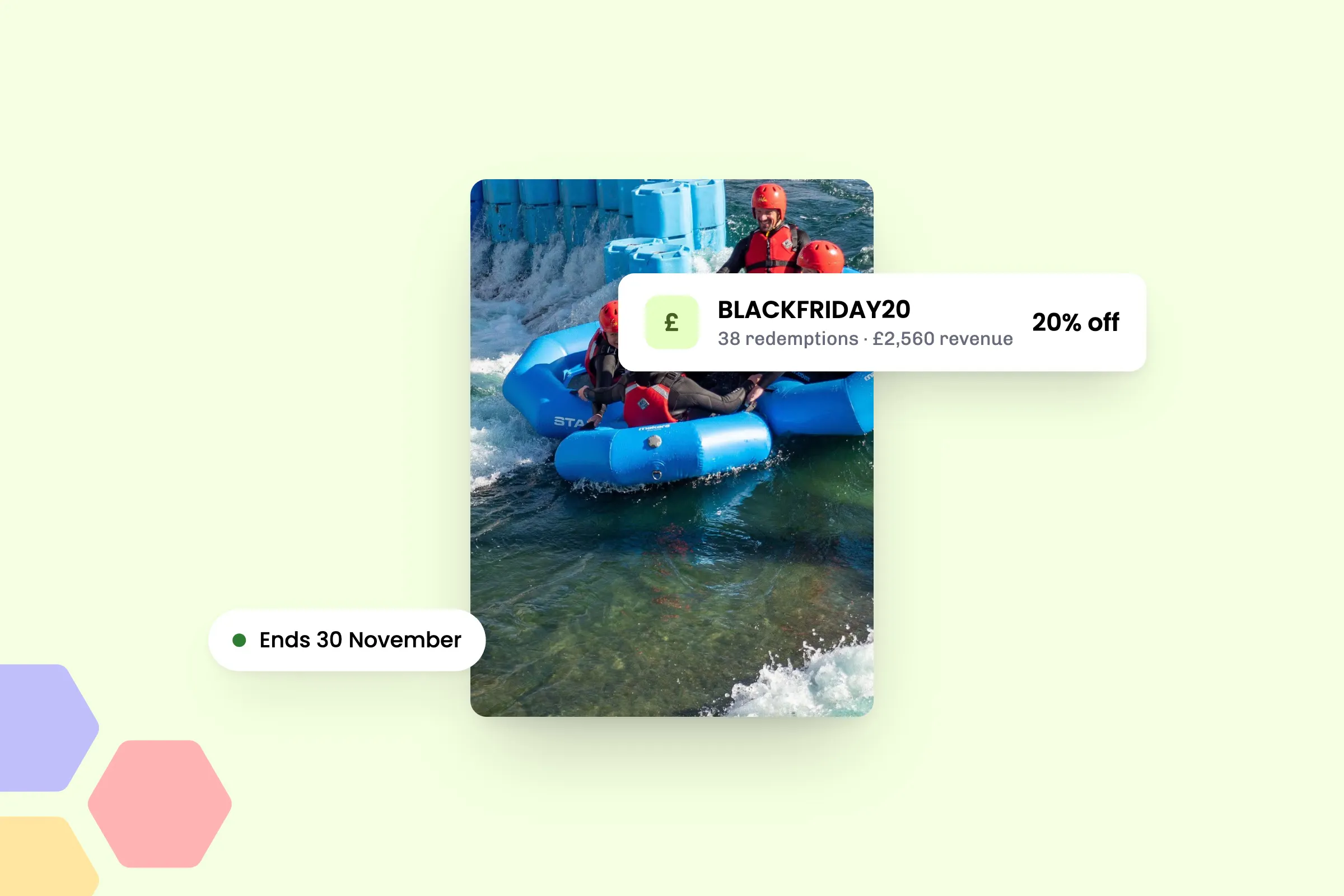
Black Friday weekend and the run-up to Christmas are when people go looking for a deal and start planning presents. A well-timed discount code gives them a reason to book with you, and with eola you choose how much it takes off, what it works on and the dates it runs. Each code now shows the revenue it has brought in, so you can see which offers paid off and run more of them.
Set up offers that end on their own
- Percentage discount: anything from 1% to 100% off.
- Start date and End date: the code works from the start date until the end of the end date. A Black Friday code could run from Friday 27 November to the end of Monday 30 November, then stop on its own.
- Single-use or multi-use: by default, each customer can use a code once. Tick Enable multi-use codes to let them use it again.
- Products: a code works on everything in the basket unless you limit it to certain activities, rentals, accommodation or class passes.
- The code itself: use the one eola suggests or type your own, such as XMAS10.
See which offers paid off
Open any code to see four figures at the top:
- Redemptions: paid checkouts that used the code.
- Items bought: items in those checkouts that the code took money off.
- Savings: how much the code has taken off what customers paid.
- Revenue: what customers have paid for those items after the discount. Refunds aren’t taken off.
Put Revenue next to Savings and you can see what an offer cost you and what it brought in. Your list of codes shows each one’s redemptions, products and dates, with totals for all your codes at the top.
Membership discount codes have their own Memberships tab, with discounted and lifetime revenue for each code. See our guide to membership discount codes.
Keep customers happy when plans change
- Codes come back after a cancellation: if a customer cancels a booking that used a single-use code, they can use the code again.
- Refund onto a credit voucher: when you cancel a booking that used a discount code, you can refund what the customer paid onto a new credit voucher instead of their card. This needs credit vouchers switched on.
- Change a live code: edit a code’s percentage, dates, products and multi-use setting at any time, or tick Manually disable to stop it straight away.
How to set it up
If Discount codes isn’t under Products in your menu, go to Toolset > Apps, open Discount codes and select Add to eola.
- Go to Products > Discount codes and, on the Bookings tab, select Issue discount code.
- Use the suggested code or type your own, and enter the Percentage discount.
- Pick a Start date and an End date.
- Tick Enable multi-use codes if customers can use the code more than once.
- To limit the code to certain products, tick them. Leave them all unticked for everything.
- Select Issue discount code.
Customers enter the code in your widget, in the same place they’d enter a voucher, and see the discount before they pay.
Tips for a busy Black Friday
- Set up your Black Friday and Christmas codes now. With the dates in place, each code stops on its own, so there’s nothing to switch off on the Monday morning.
- Give each offer its own code, for example one for your newsletter and one for Instagram, so the revenue figures tell you which worked better.
- Vouchers make good Christmas presents too. See our guide to selling more vouchers this Christmas.
- Run more than one centre? Tick Enable Company-wide code to make a code work at all of them.
See eola in action
A good offer can fill your calendar before Christmas and show you exactly what it was worth. Set up your first code today, or talk to us to see how discount codes could work for your business.

New to eola?
eola is the booking system made for activity and experience providers. Take bookings and payments online, run offers like these with discount codes, and put your activities in front of new customers on the eola marketplace. Book a demo and we’ll show you how eola could work for your business.