Change a single session’s capacity and filter your calendar
Your calendar is where most of the day gets run, so small changes there save a lot of clicks. This year we’ve added a way to change the capacity of a single session, filters for several resources and product types, and a clearer view of stays and same-time sessions. Here’s what’s new and how to use it.
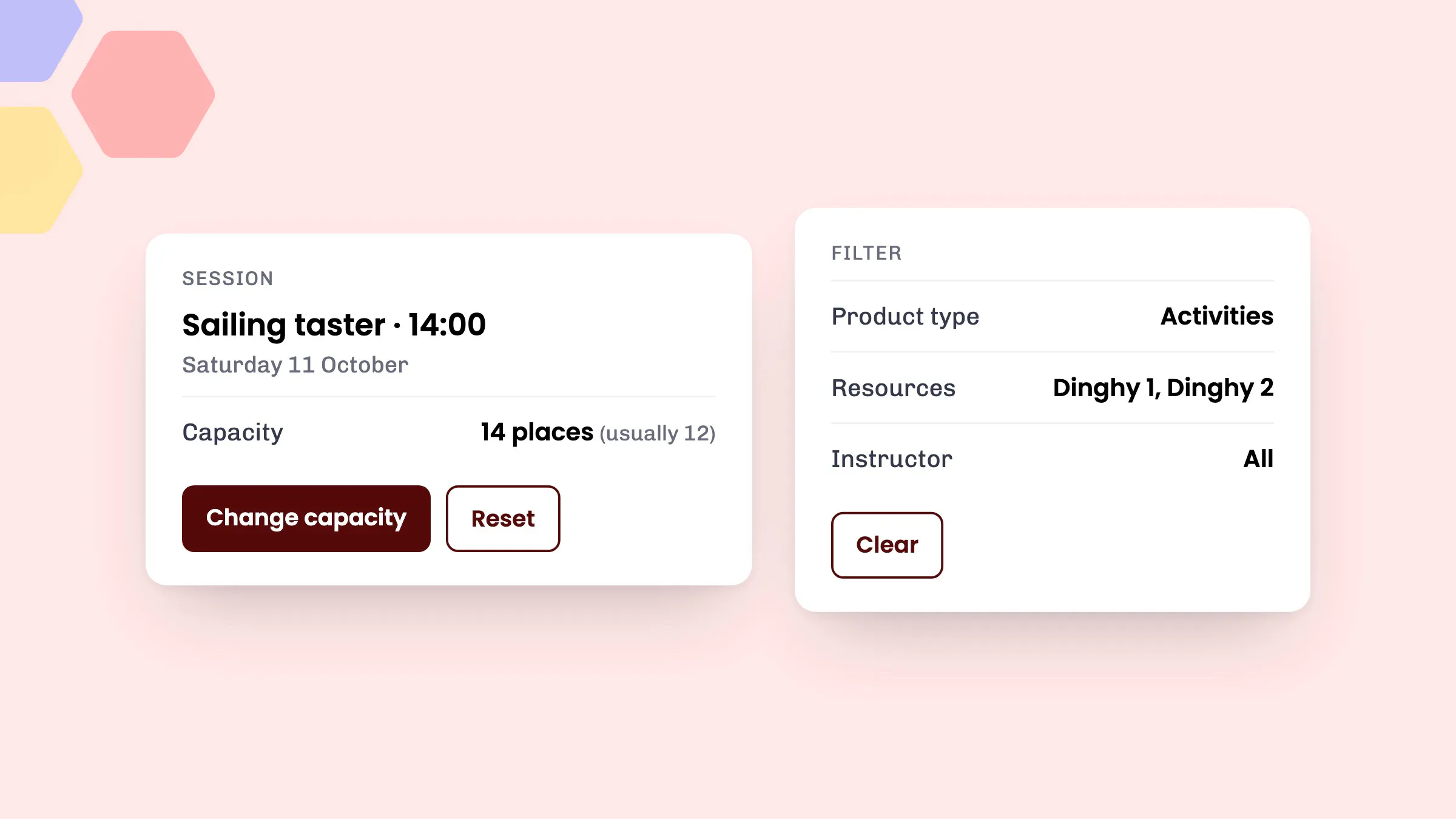
Change the capacity of a single session
Sometimes one session needs to run bigger or smaller than usual. An extra instructor is free for the Saturday morning lesson, or the forecast means you’d rather take fewer people out on the water. You can now change the capacity of one session without changing it for the whole activity.
Once you’ve changed it, the session shows its new capacity alongside what it’s usually set to, so your team can see at a glance that it’s been adjusted. Any resources still limit how many people can book as normal.
How to change a session’s capacity
- Open the session from the calendar.
- Choose Change capacity.
- Enter the number of places and choose Save.
- To go back to the activity’s normal capacity, choose Reset.
Filter by several resources at once
If you use resources, such as boats, bikes or rooms, you can now pick several to show on the calendar, rather than one or all of them. Open Filter and tick the resources you want. Leave them all unticked to show everything.
The calendar also remembers whether you were looking at Resources, Instructors or Activities, so it opens the way you left it.
Filter by product type
If you sell more than activities, the Product type filter lets you show only activities, only rentals or only accommodation. Two more filters help you focus:
- Product shows just one product at a time, whether it’s an activity, rental or accommodation. It replaced the old Activity filter.
- Space type shows only the accommodation bookings for one type of space.
These filters only appear if you use those features, so the calendar stays simple if you only run activities.
How to use the filters
- Open Calendar from the dashboard menu, or from the top-right corner of any page.
- Select Filter.
- Choose what to show, for example Product type, Product, Activity type, Resources, Space type or Instructor.
- To go back to your full calendar, choose Clear.
For a full tour of the calendar views and filters, read View your calendar in our help centre.
Clearer stays, steadier sessions and faster notes
- Accommodation bookings now sit in the all-day section at the top of the week and day views, so stays are easy to scan without crowding out your sessions.
- Activities that run at the same time now always appear in the same order, instead of swapping sides from one day to the next.
- Creating and deleting repeating calendar notes over long periods now saves much more quickly. To add one, select the + button and choose Add note.
Good to know
- Single session capacity works for activity sessions. Rentals and accommodation take their capacity from your resources and spaces.
- A session’s capacity can’t go below the activity’s minimum.
- Team members who can disable further bookings on a session can also change its capacity.
- The Resources view and filter need the Resources app, which is part of automated resource management on the Pro plan. If you can’t find something, check your filters first and choose Clear.
See eola in action
Want to see how this could work for your business? Book a demo or get in touch with our team.