How the AI questionnaire checker flags answers to review
Questionnaires tell your team what they need to know before a session, from health conditions to who needs a hand on the day. On a busy weekend, reading every answer for every booking takes time, and it’s easy to miss the one that matters. The AI questionnaire checker reads each completed questionnaire and flags the answers your team should look at more closely.
What it checks
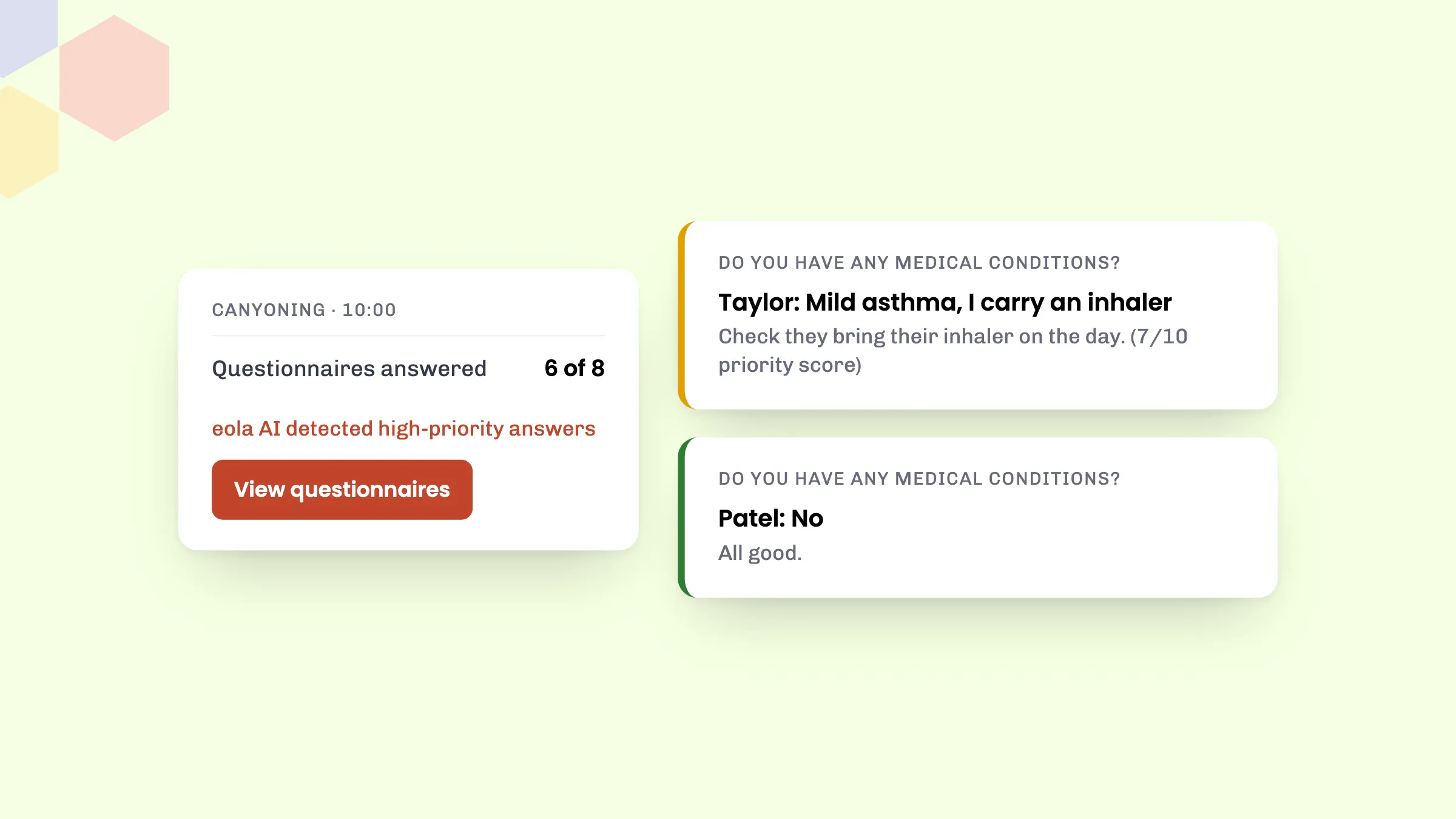
When a customer completes a questionnaire for a booking, the checker gives each answer a priority score out of 10. A score of 1 means the answer looks fine, and 10 means it definitely needs a closer look. It’s looking for anything that could affect whether someone can take part safely, such as:
- health conditions or allergies you may want to ask about before the session
- a Yes that needs explaining, where the follow-up question has been left blank
- requests for assistance that need organising
- required details that are missing or look wrong, like someone naming themselves as their own emergency contact
It also takes into account the requirements you’ve set on the activity or rental, and its itinerary, so each answer is judged against what the session involves.
Where you see the flags
Open a session from your calendar. If an answer has been flagged, or questionnaires are still missing, the View questionnaires button turns red.
On the View questionnaires page, you’ll see the message eola AI detected high-priority answers, and a small indicator next to each answer. Hover over it to see why. A flagged answer shows a short explanation and its score, for example (7/10 priority score). Answers with a low score show All good.
To check one family or group at the desk, click View party questionnaires on their booking. You’ll see just that party’s answers, with the same flags.
What customers see
Nothing changes for customers. They fill in the questionnaire as usual, and the scores and explanations are only shown to your team in your eola dashboard.
How to set it up
- Go to Toolset > Apps and open Compliance and safety.
- Read the terms and conditions tab, then select Add to eola.
- Make sure each activity and rental has a question pack assigned, in the Docs and legal section of its Options step.
- Fill in What are the requirements, if any? in each activity’s Details step, so the checker can take them into account.
The AI questionnaire checker is included in the Pro plan at no extra cost. Question packs are included on every plan, including Starter. Our help articles Create a question pack and Use the eola App Store explain each step, and our guide to managing questionnaires and question packs covers the rest.
Good to know
- It’s a second pair of eyes, not a replacement. Your team should still read customers’ answers before the session.
- It checks questionnaires answered for bookings. Answers given when someone joins a membership aren’t scored.
- Before switching it on, read how customers’ answers are handled on the app’s terms and conditions tab.
See eola in action
Want to see how this could work for your business? Book a demo or get in touch with our team.