New: print or download a session’s participant list
Before a session, your team needs to know who’s coming: names for the register, wetsuit and boot sizes, and who needs extra support. Every session now has a Participants tab with everyone taking part on one list, ready to print for your instructors or download as a spreadsheet.
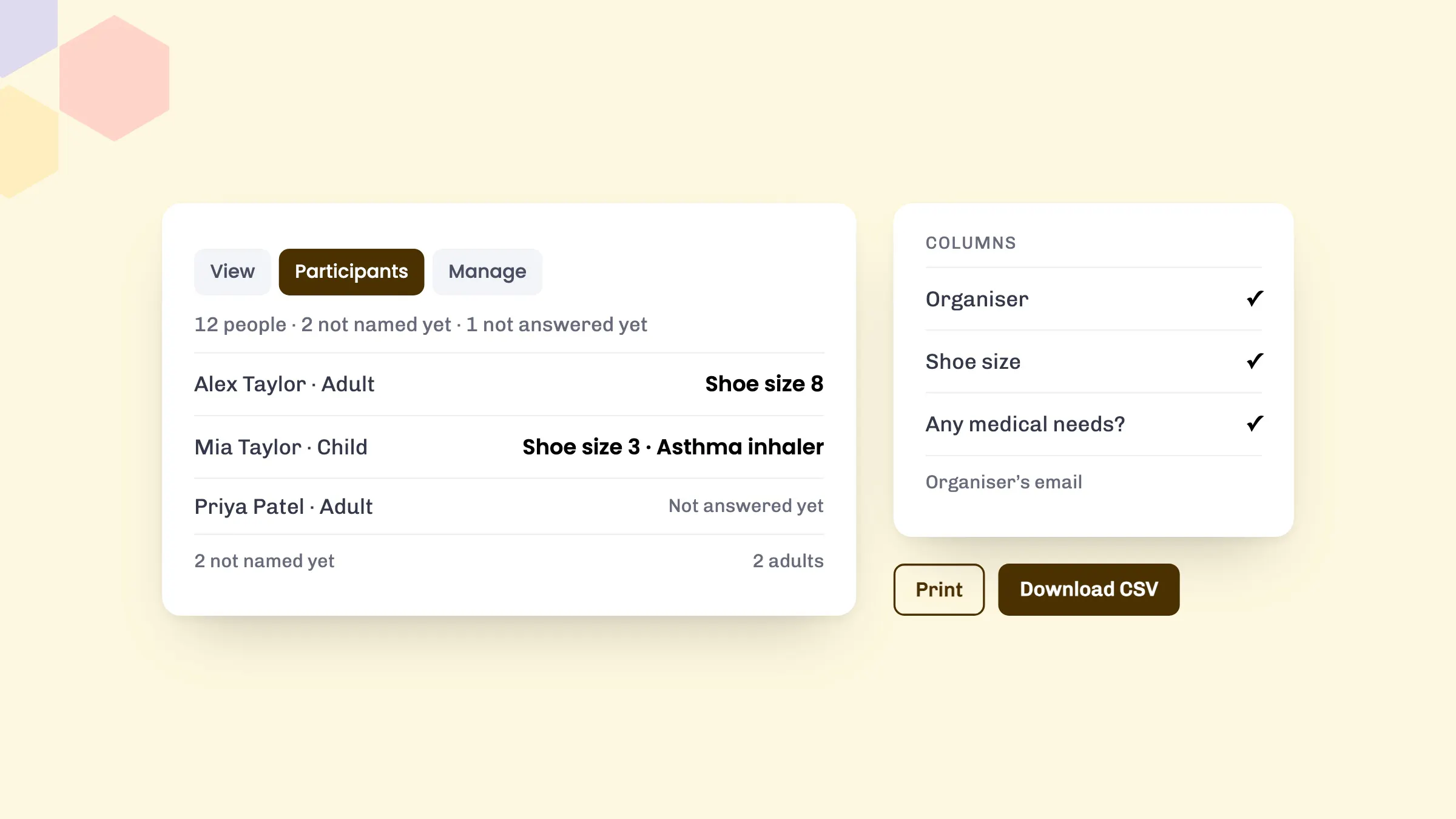
What’s on the list
- Everyone taking part, adults and children, one row each, in first-name order, marked Adult or child.
- A summary at the top, such as “12 people · 2 not named yet · 1 not answered yet”.
- Places nobody has been named for yet share one row per booking, so the list still adds up to your headcount.
- “Not answered yet” next to anyone whose questionnaire isn’t in, so you know who to chase.
Cancelled bookings are left off, and so is an organiser who booked for others without taking part.
Choose the columns
Use the Columns button to pick what shows. Under Booking, the Organiser is shown by default, and you can add Organiser’s phone and Organiser’s email if you can see the session’s bookings. Contact details stay off the list unless you add them.
Under Questionnaire, each question in the session’s question pack has its own tick box, so you can show only what your team needs, such as shoe size or medical needs. Your choice is remembered next time, and it carries over to other activities whose question pack asks the same question in the same words.
Where it helps
- Instructors: hand the lead instructor a printed register with names, ages and headcount.
- Boot room and kit store: show only the size questions and lay out wetsuits, boots or helmets before the group arrives.
- Safety briefings: add the medical and support needs questions, so instructors know who needs extra care before anyone gets on the water.
- Group bookings: spot unnamed places early and ask the organiser for names before the day.
How to use it
- Go to Calendar and click the session.
- Open the Participants tab.
- Select Columns and tick the booking details and questionnaire answers you want.
- Select Print for a clean sheet with the activity, date, time and headcount at the top, or Download CSV for a spreadsheet file with the same columns that opens in Excel or Google Sheets.
If you can’t see the Participants tab, ask your account owner to give your permission set access to Attendees, under Sessions. See understanding permission sets in the help centre.
The answers come from your question packs. To set one up, see how to create a question pack, or read our guide to managing questionnaires for your customers.
Good to know
- Answers only show once the customer has submitted their questionnaire for this booking. Answers carried over from an earlier booking wait until they confirm them.
- If you change a session’s question pack after people have answered, their answers still show.
See eola in action
Want to see how this could work for your business? Book a demo or get in touch with our team.