Review links: ask every customer for a review after their visit
Most happy customers mean to leave a review and then forget. Review links put a one-click review button in the thank-you email customers get after their visit, so every booking ends with a request for a review, without anyone on your team chasing it.
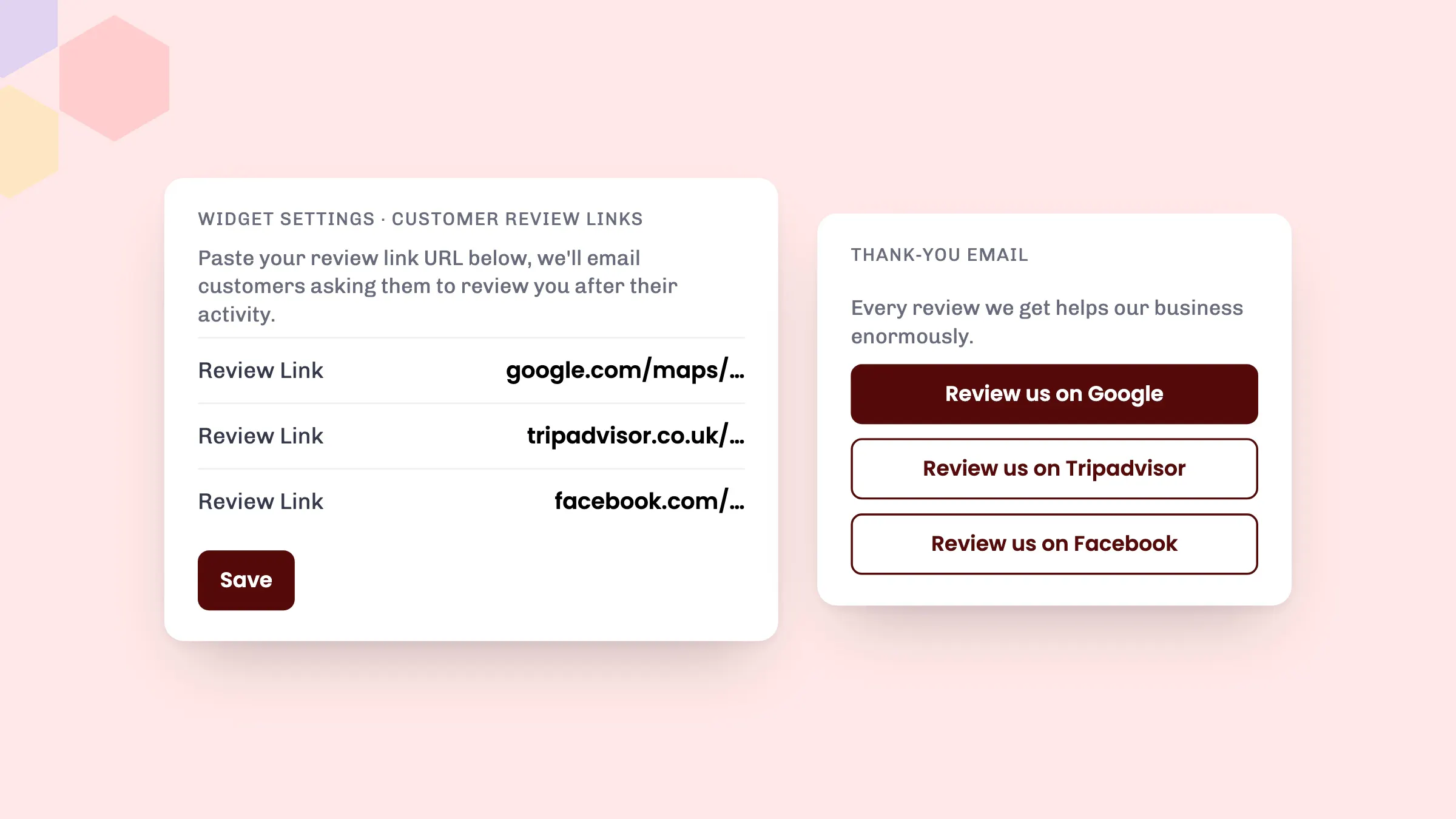
How review links work for you
You add up to three review links, for example your Google Business Profile, Tripadvisor and Facebook pages. We add them to the automatic emails customers get after their booking, so nobody has to remember to ask on a busy day.
You can also add your own message to that email for each activity, rental or accommodation, using the Post experience email field. It’s a good place to say thank you or mention what’s coming up next.
Reviews build trust with new customers. For more on why they matter, read How to get more online reviews for your activity business, and our tips on how to manage bad online reviews.
What customers see
The day after their booking finishes, customers get a thank-you email from you. It explains that every review helps your business, followed by a button for each review link.
For the most popular review sites, the button names the site:
- Review us on Google
- Review us on Tripadvisor
- Review us on Facebook
For other sites, the button uses the site’s name from the link.
The email goes to the organiser and to every adult participant and guardian on the booking, not just the person who paid. It also suggests other things to book with you, to bring them back.
About two weeks later, customers who haven’t booked again get a follow-up email from eola with more things to do. It includes a link to leave a review, using your first review link.
How to set it up
- Go to Toolset > Widget > Widget settings.
- Under Customer Review Links, paste the URL of each review page into a Review Link field. You can add up to three.
- Select Save.
- To add your own message, open an activity, rental or accommodation, go to the Details step and fill in Post experience email under Customer comms.
Review links are available to every partner, on Starter and Pro, at no extra cost. It takes a couple of minutes to add yours, and from then on every customer is asked for a review.
Good to know
- Paste the link to your review page, not your website. eola won’t save a review link that’s the same as your website.
- Regulars who’ve had another booking with you in the last four weeks won’t get the thank-you email after every visit.
- Bookings that come from Pitchup don’t get these emails.
- Customers tend to review on the site they already use, so start with the one your customers know best, often Google.
See eola in action
Want to see how this could work for your business? Book a demo or get in touch with our team.