How to take payments on eola: Stripe, payouts, fees and refunds
eola takes payments for you through Stripe, our payment provider, and pays the money into your bank account every week. This guide covers setting up payments, the fees, the ways customers can pay online and at your front desk, and how payouts and refunds work.

Set up payments with Stripe
Before you can receive money from bookings, you verify your business with Stripe. The details you enter go straight to Stripe and are held by them, not by eola, and eola never has access to your full bank details.
- When you first log in, you’ll see a Payment details needed banner on your Dashboard. Click Add details, then Connect to Stripe.
- Stripe asks about your business and the people connected to it. Sole traders, limited companies and charities are asked different questions, and larger organisations may need details for more than one person.
- Once you’ve finished, you’re returned to your Dashboard and Stripe carries out its checks.
- If everything is approved, you’re ready to take payments. If Stripe needs anything else, the banner comes back with what’s required.
Have your business and identity documents to hand before you start. If you get stuck, click Return to eola on the Stripe page and email help@eola.co. Our help article Verify your account with Stripe has the full steps.
Stripe sometimes asks you to confirm your details again, for example after a routine check. If the banner reappears, complete it quickly, because Stripe can restrict your account and hold payouts until it’s done.
Fees
There are no sign-up fees. Card payments have a 1.7% + 30p processing fee, and customers pay a 5% booking fee at checkout. Starter is £0 a month and Pro is £249 a month. See our pricing page for the full breakdown.
How customers pay online
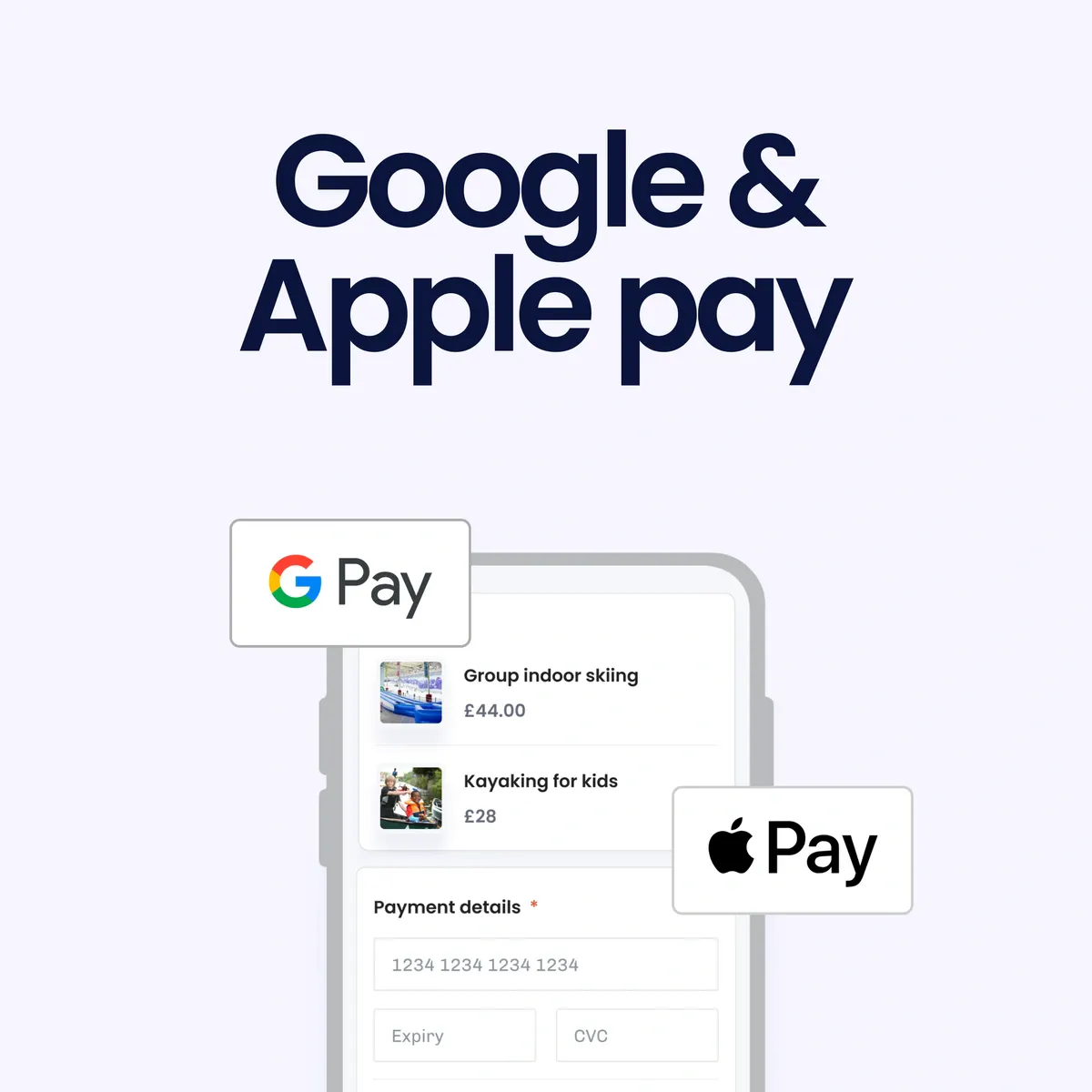
In your booking widget, customers pay by card, or by Apple Pay or Google Pay when their phone or browser supports it. There’s nothing to switch on. Members see your business name on their bank statement rather than eola’s, which makes the charge easier to recognise.
Taking payments at the front desk
For walk-ins and phone bookings, select New booking at the top of your dashboard. At checkout you choose how the customer pays:
- Card reader, for in-person card payments. Add the Card readers app from Toolset > Apps, then set up your reader under Toolset > Card readers.
- Cash, so your reports still show how the booking was paid.
- Payment link, sent by email, and by text too if you tick Send via sms too.
- Invoice, if you use the Invoicing app.
Card, cash and invoice payments and onsite point of sale are included on every plan, including Starter. Our guide to taking bookings at the front desk has more detail.
Payment links, deposits and invoices
- Payment links: send a link and the customer pays by card in their own time. Go to Sales > Unpaid items to see what’s still owed, copy a link or take payment when the customer turns up.
- Deposits: let customers secure a booking with a part payment, with reminders to pay the balance before their visit. Deposits is in Alpha, so ask our team to switch it on from Toolset > Apps.
- Invoices: with the Invoicing app, eola emails the customer an invoice for their booking, and they can pay by card or bank transfer. Reports > Invoices shows each invoice and whether it’s open, paid, past due or void. The app shows its fee in Toolset > Apps before you add it.
Payouts
Customer payments are collected together and paid into your bank account in one transfer, once a week. Go to Reports > Payouts to see each payout, the transactions in it and the amount due on your next payout date.
To change the bank account you’re paid into, an owner on your eola account emails help@eola.co with your outlet name and the new account details. Allow time for us to check the request before your next payout.
Refunds and disputes
You can refund a booking to the customer’s card or onto a credit voucher. Bookings paid with a voucher are refunded to a voucher. Card refunds are taken from your eola balance, so they come off your payouts. If you refund on the same day as the booking, the payment may be reversed instead, so the customer won’t see a separate refund on their statement.
If a customer disputes a payment with their bank, our team contacts you for the details and challenges it on your behalf, free of charge. If the bank sides with the customer, the payment is refunded and Stripe charges a £15 dispute fee.
Good to know
- Payments are processed by Stripe, a PCI-compliant payment provider. Read more about how eola protects your data.
- Keep your bank details up to date to avoid delays to your payouts.
- If a payout hasn’t arrived or looks wrong, email help@eola.co.
See eola in action
Want to see how this could work for your business? Book a demo or get in touch with our team.