New: block accommodation spaces from the calendar
A storm floods the bottom field, a lodge needs a new boiler, or a bell tent is down for repairs. You can now block accommodation spaces straight from the calendar, so they stop being bookable for the nights you choose.
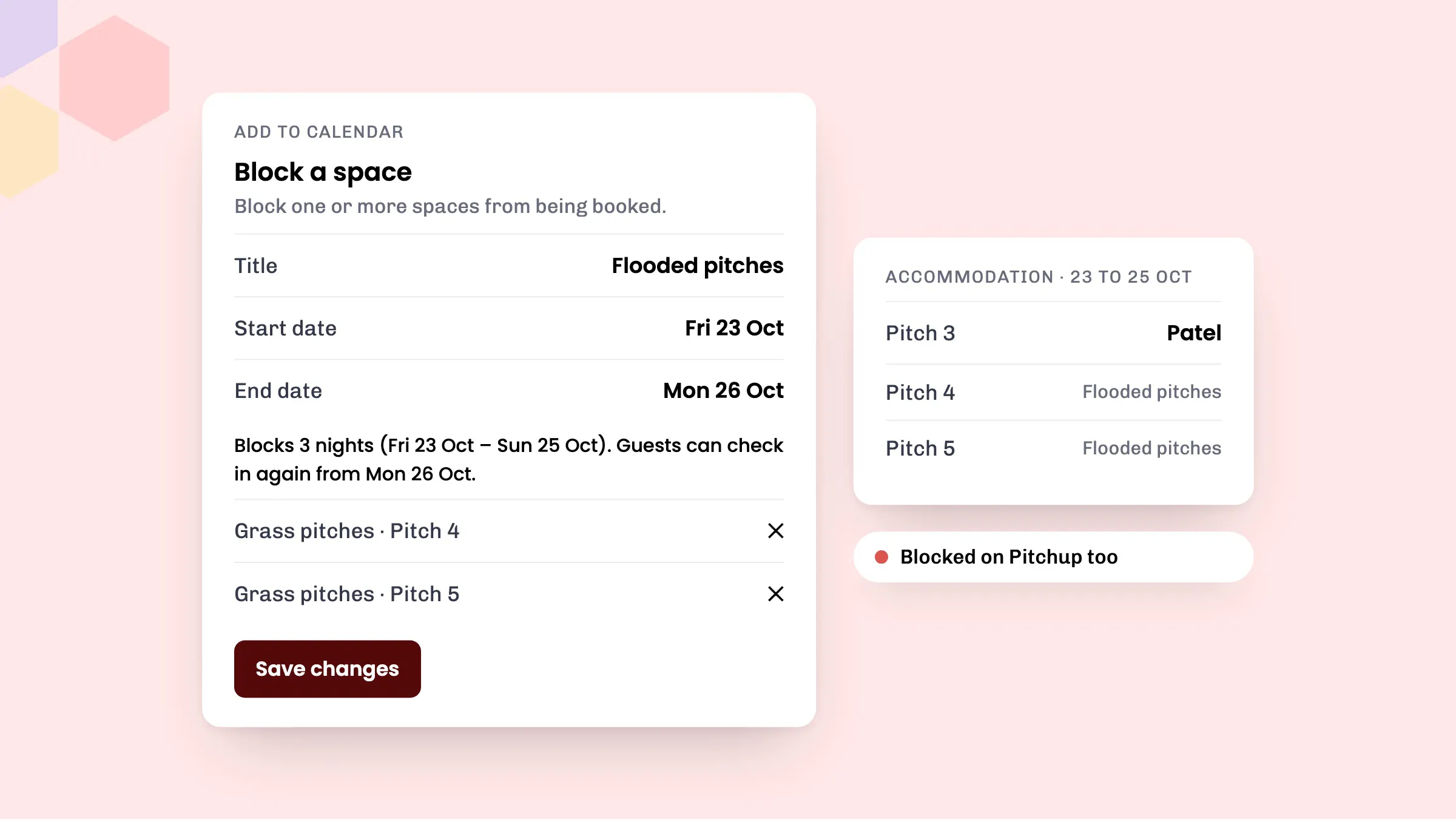
What it does
In the calendar’s Accommodation view, Add note becomes Block a space. Give the block a title, pick the dates and add the spaces to close. For those nights the spaces can’t be booked, and the block shows in both Accommodation and Overview, so the whole team can see why a pitch is out of use.
- Block one space or several, across different space types, in one go.
- Blocks cover whole nights. eola shows what you’re blocking as you go, for example “Blocks 3 nights (Fri 23 Oct – Sun 25 Oct). Guests can check in again from Mon 26 Oct.”
- Add details for your team, such as why the space is closed or who’s fixing it.
Customers don’t see the block or its title. The blocked spaces just aren’t offered for those nights.
If you list on Pitchup
If your stays are on Pitchup through eola, blocking a pitch that’s linked to Pitchup blocks it there too, so it can’t be double-booked. Blocks are managed in eola: if someone changes one on Pitchup, eola puts it back and lets you know. Cancelling a block on Pitchup removes it in eola. Read more about Pitchup bookings in eola.
How to set it up
- Go to Calendar and choose the Accommodation view.
- Select the + button and choose Block a space.
- Add a Title, such as “Flooded pitches”, and any details.
- Set the Start date and End date. The End date is the day guests can check in again.
- Pick a Space type and a Space, then select Add. Repeat for each space you want to close.
- Select Save changes.
To reopen a space, click the block on the calendar. Remove that space and select Save changes, or select Delete note to reopen every space on the block. You can change the dates the same way.
The Accommodation view appears once you have accommodation spaces set up. For more on the calendar views, see view your calendar in the help centre, or our guide to activities and accommodation in one system.
Good to know
- A space block can’t repeat or also block staff and equipment. To close equipment for activities or rentals, block resources with a calendar note instead.
See eola in action
Want to see how this could work for your business? Book a demo or get in touch with our team.